
Integration Docs
Integration Guide
Connect Vibe to Segwise
Follow these steps to connect Vibe to Segwise and unlock AI-powered creative analytics across your campaigns.
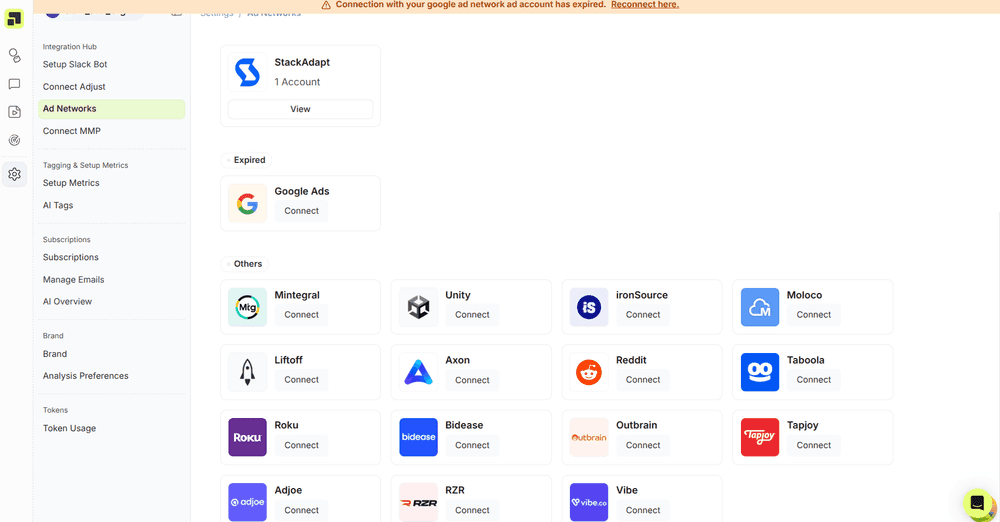
Step 1: Select Vibe from Ad Networks
- Navigate to Settings → Ad Networks in Segwise.
- Locate Vibe in the list of available ad networks.
- Click Connect to begin the integration process.
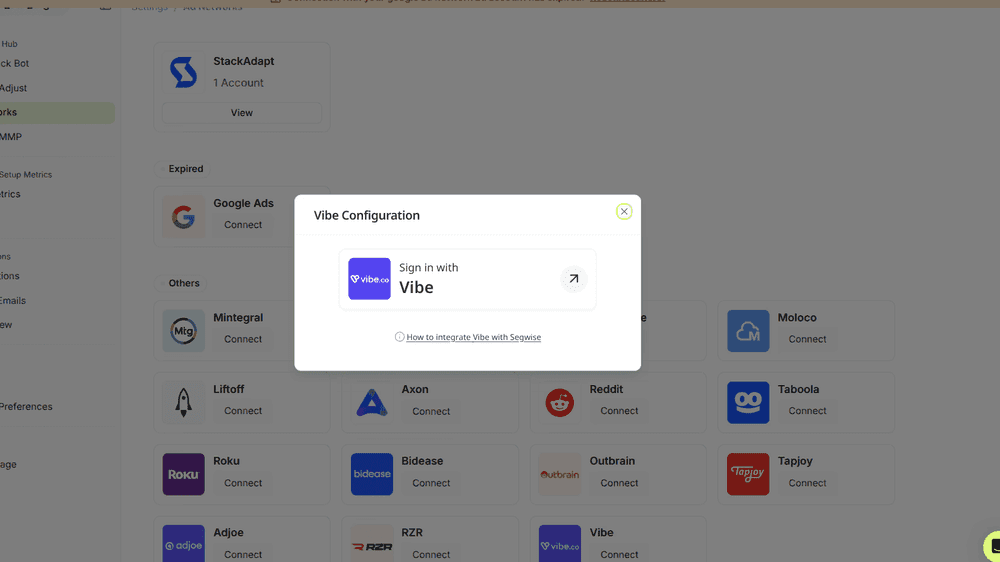
Step 2: Select Your Vibe Account
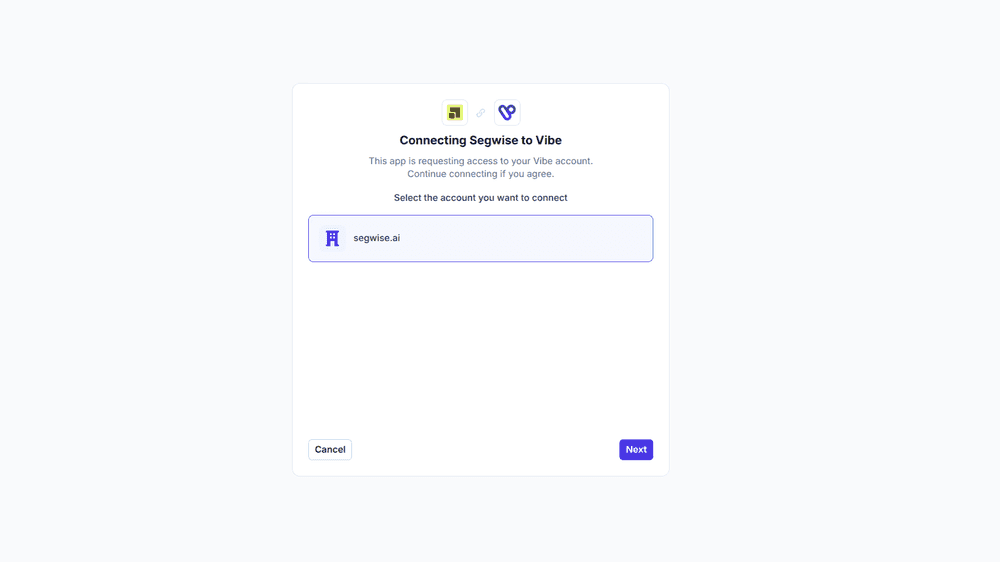
- You will be redirected to the Vibe authorization page.
- Select the Vibe account you would like to connect.
- Click Next to continue.
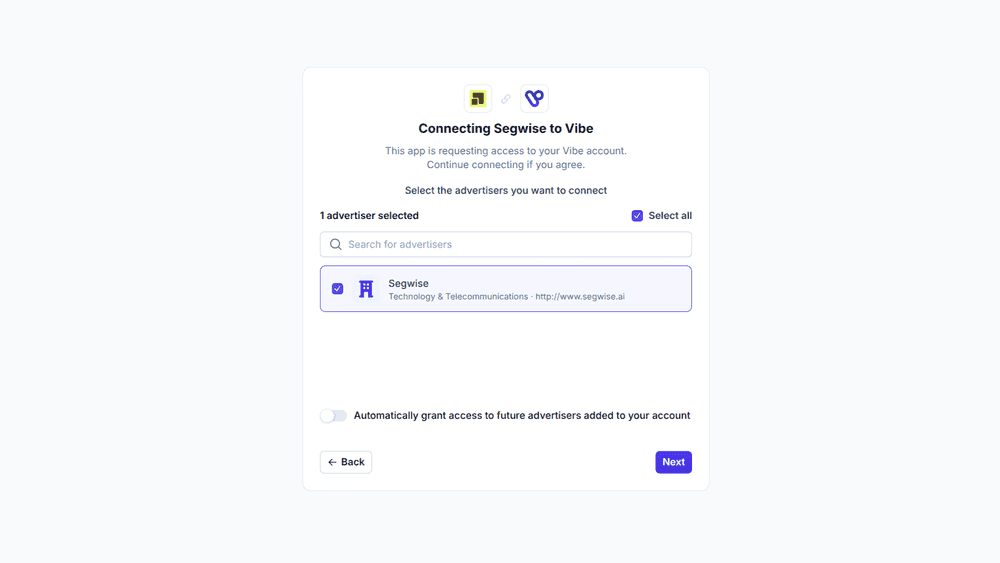
Step 3: Select Advertisers
- Select the advertiser accounts you would like Segwise to access.
- Click Next.
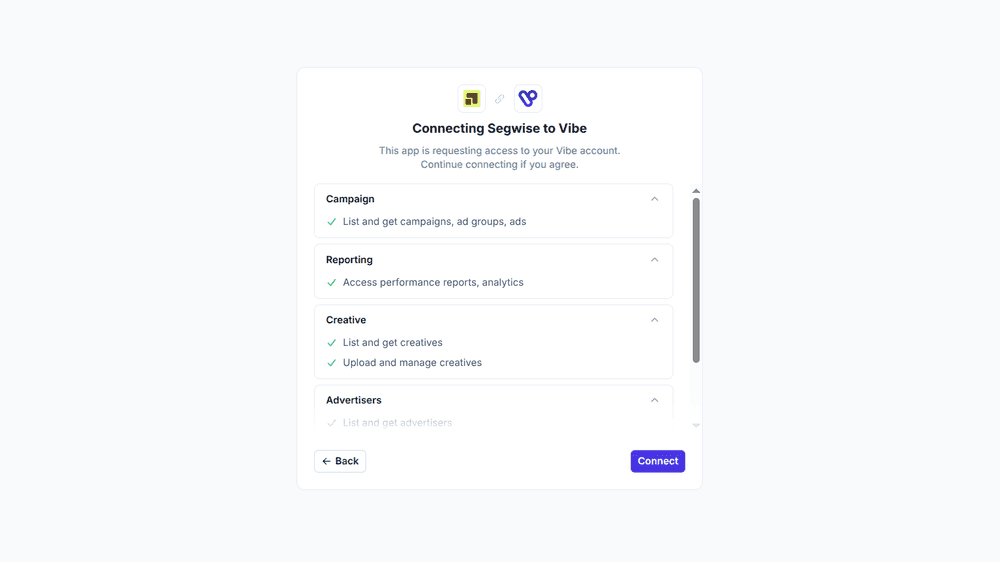
Step 4: Grant Permissions
- Review the permissions requested by Segwise.
- List and get advertisers (advertisers:read)
- List and get audiences (audiences:read)
- List and get campaigns, ad groups, and ads (campaigns:read)
- List and get creatives (creatives:read)
- Upload and manage creatives (creatives:write)
- Read impression tracking data (impression_tracking:read)
- Access performance reports and analytics (reporting:read)
- Click Connect to authorize Segwise.
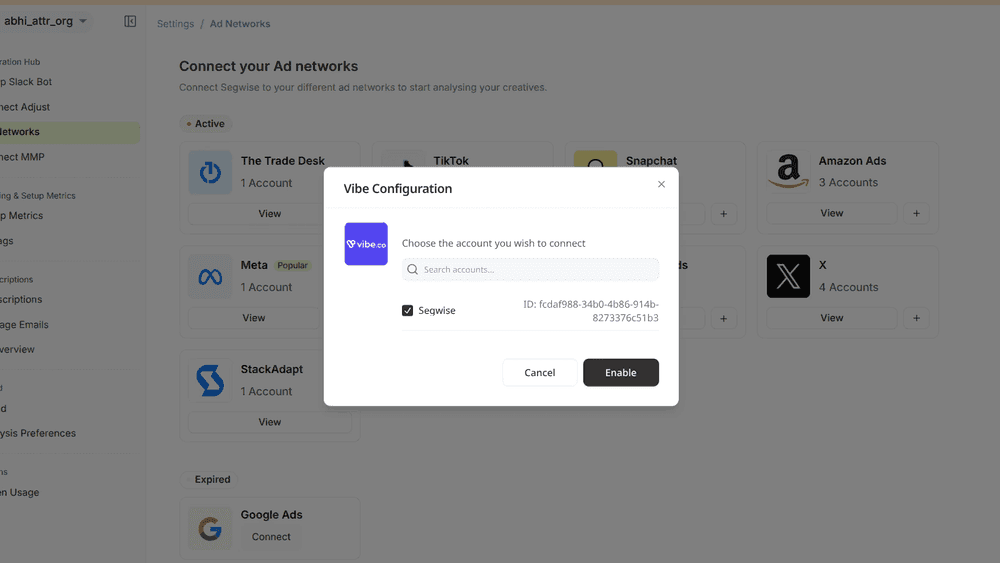
Step 5: Select an Account in Segwise
- After authorization, you will be redirected back to Segwise.
- The Vibe Configuration dialog will display the available advertiser accounts.
- Select the account you would like Segwise to connect.
- Click Enable
Ready to analyze your Vibe creatives?
Connect your data and let Segwise tag, analyze, and surface your winning creatives.


