
Are you confident that the events you use in Meta Ads actually represent what a high-quality user looks like?
If you’re optimizing on the wrong events, Meta’s algorithm is learning from weak signals, pushing spend toward low-quality users, and scaling campaigns that look good on CTR but quietly kill ROAS. The scary part? You often don’t realize it’s happening until performance has already dropped and budgets are wasted.
If you’re a UA manager or growth lead running mobile games, DTC video ads, or subscription app campaigns, this is a common problem. This blog breaks down exactly how to set up custom events on Meta Ads. By the end, you’ll know how to send Meta clean, high-intent signals that actually help you acquire users who install, convert, subscribe, and stick around.
What Is a Custom Event in Meta Ads?
A custom event in Meta Ads is a user action you define and track that goes beyond Meta’s standard events, so you can optimize campaigns around actions that actually signal user quality. Instead of depending only on installs, clicks, or purchases, custom events let you track high-intent behaviors like completing a tutorial in a mobile game, viewing a pricing page in a DTC funnel, or starting a subscription trial.
For UA and growth teams, custom events help Meta’s algorithm learn which users are more likely to convert, retain, and deliver long-term value.
While understanding what a custom event is gives you clarity, the real value comes from knowing why it matters for your campaigns.
Also Read: How to SetUp Meta Events Manager for Accurate Ad Tracking in 2026
Why Set Up Custom Events?
Standard Meta events are often too generic for user acquisition decisions. They track what happened, but not how valuable the user is or what intent they showed. You set up custom events, so Meta optimizes your campaigns based on real user intent, not just surface-level actions. This leads to better learning, better targeting, and smarter budget allocation as you scale.
Here are key reasons to set up custom events in Meta Ads: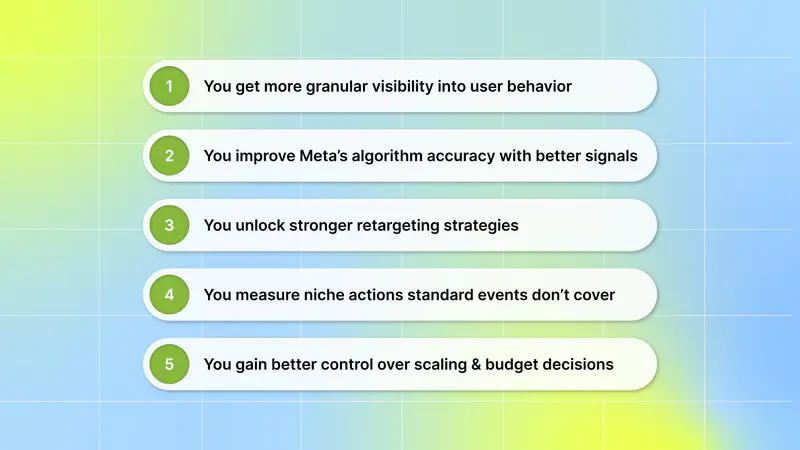
1. You get more granular visibility into user behavior: By tracking specific in-app or on-site actions, you can see where users drop off, which steps matter most, and how far users move through your funnel.
2. You improve Meta’s algorithm accuracy with better signals: When you define what a valuable user journey looks like, you train Meta to find more users who are likely to complete those exact actions, not just click an ad.
3. You unlock stronger retargeting strategies: Custom events allow you to build precise audiences, like users who added to cart but didn’t purchase or installed but didn’t reach a key activation step.
4. You measure niche actions standard events don’t cover: Whether it’s a specific button click, feature usage, or scroll depth, custom events help you track actions that matter to you but don’t exist in Meta’s default event list.
5. You gain better control over scaling and budget decisions: When Meta optimizes for high-intent custom events, you can scale campaigns with greater confidence. Budget flows toward users who are more likely to convert, retain, or subscribe, reducing wasted spend as you grow.
If you want to know which creative elements are actually driving those high-intent events, you need tools like Segwise. It integrates directly with your Meta Ads account, automatically tags every creative, and maps those creative elements to your performance data, so you can see not just who converts, but why. With tag-level creative element mapping, you can see which specific creative elements, themes, and formats drive results across all your campaigns.
To get the most out of custom events, it’s important to ensure the foundation is set up correctly.
What You Need Before Setting Up Custom Events on Meta
Before you start creating custom events using the Meta event setup tool, a few basics need to be in place so Meta can track user actions and optimize your campaigns correctly. Skipping these checks often leads to missing data, broken events, or poor learning signals.
Here are the key things you need before setting up custom events on Meta:
1. Confirm the Meta Pixel is installed on your website
Custom events are built on top of the Meta Pixel. If the Pixel isn’t installed or firing, Meta won’t receive any data to learn from. Go to Events Manager and check that basic events like PageView or ViewContent are showing activity before moving ahead.
2. Make sure that you have admin permissions for the pixel
You need admin access to create, edit, and manage custom events. Without the right permissions, you won’t be able to define rules, save events, or troubleshoot tracking issues.
3. Turn off ad blockers in your browser.
Ad blockers can prevent the Pixel from firing, making it appear that events aren’t working when they actually are.
4. Ensure a unique product identifier is available in your web page text or web page URL
To set up content ID and content type parameters, a unique product identifier should be available either in the web page text or in the web page URL. For example, a product SKU or UPC. Content ID and content type parameters are only available for viewing content, adding to cart, initiating checkout, purchasing, searching, adding to wishlist, and lead events.
The next step is configuring your custom events to track the actions that matter most.
How to Set Up Custom Events on Meta Using Meta Pixel
Once your Meta Pixel is active, you can start defining custom events based on the actions that matter most in your user acquisition funnel. This process lets you turn specific user behaviors into clear optimization signals for Meta.
Here are the steps to set up custom events on Meta using the Meta Pixel:
1. Go to Meta Events Manager.
2. Click Datasets in the left menu of the page.
3. Select the name and ID of your data.
4. Click the Settings tab at the top of the page.
5. Select Open event setup tool under Event setup.
6. Enter your URL and click Open website. The event setup tool will launch in your website browser.
7. Click Review by each suggested event and then select Confirm or Dismiss.
8. To add events that don't appear in your suggested list, navigate your website as usual to find the buttons or web pages that you want. Select Track new button or Track a URL and follow the onscreen instructions.
Note: When you set up an event on a button, you add it to all buttons with the same or similar text on your website.
9. Select an event.
10. Set up parameters for your event.
Set up value and currency parameters
Under Value, select Choose value on page if you want to add a value parameter.
The tool will highlight prices on your web page. Select the value (price) that corresponds to the event. After you've selected a value the first time, the tool will be able to auto-fill values on other pages.
Under Currency, select your currency from the drop-down menu.
Set up content ID and content type parameters
Click Add content ID and content type to set up those parameters with your event.
Select Choose content ID on Page if your content ID is visible on your web page. Select Extract content ID from URL if your content ID appears in your website URL.
Follow the on-screen instructions to set your content ID.
Select the content type.
Click Confirm.
11. Click Finish setup in the event setup tool when you've finished.
Once your custom events are set up, it’s essential to verify they’re firing correctly and passing the right signals to Meta.
How to Review Custom Events in Meta Events Manager
Reviewing your custom events in Meta Events Manager helps you confirm that events are firing correctly and sending clean signals to Meta’s algorithm. This step is critical to catching tracking issues early and ensuring your campaigns are optimizing on the right actions.
Here are the steps to review custom events in Meta Events Manager:
1. Go to Meta Events Manager → Datasets in the left menu → Select the name and ID of your data → Click the Settings tab.
2. Scroll down to Data restrictions.
3. In the Manage custom event blocking section, click Review.
4. In the Action required tab, select all of the custom events that you want to confirm or block.
Note: You may not be able to confirm that custom events that Meta has detected may contain potentially prohibited information.
5. Click Next.
6. Select Confirm the custom event or Block the custom event.
7. Click Review. A message will appear on screen if you've successfully confirmed or blocked custom events.
8. Click Done.
After this, test it by performing the tracked action on your website. Once the event is live, you can use it to optimize your campaigns. Whether it’s a button click or a unique action, you can now target users most likely to perform that action, improving your campaign performance.
Setting up and verifying custom events is a crucial step but it’s not the full picture when it comes to scaling user acquisition with confidence.
Why Custom Events Aren’t Enough to Improve Performance
Custom events help you tell Meta what a high-intent user does, but they don’t explain why certain users perform better than others. You can see which events convert, but you’re still missing the context behind what actually influenced that behavior. As a result, optimization improves, but creative decisions often stay guess-driven.
Here are the key limitations of relying only on custom events:
1. They don’t explain which creatives drove high-quality users: Custom events show outcomes, not which ad, hook, or message brought those users in.
2. They don’t connect user intent back to creative elements: You can see that a user completed a tutorial or started a trial, but not which visual, format, or angle influenced that action.
3. They make creative iteration slow and reactive: Without creative-level insight, teams rely on CTR or gut instinct when refreshing ads.
4. They don’t surface early signs of creative fatigue: Events show performance drops after they happen, not which creatives are starting to decline.
5. They keep creative and UA teams working in silos: UA teams optimize on events, while creative teams lack clear feedback tied to real user value.
This sets up the need to go beyond event tracking and connect performance back to creative decisions, where smarter creative analytics come into play.
But to truly scale what’s working, you need to connect those conversion signals back to the creative decisions that triggered them.
Also Read: How to Boost Meta ROAS in 2026 with AI-Powered Creatives
Turning Custom Event Data Into Actionable Creative Insights
Knowing which users convert by tracking specific actions is only half the job in user acquisition. To scale efficiently, you need to understand what creative decisions consistently drive those high-intent actions, so your next ads are built on evidence, not assumptions. This is how teams move faster, reduce wasted testing, and brief creatives with confidence.
That’s where AI-powered platforms like Segwise come in. By integrating the Meta account with Segwise, you can fetch data and connect it with creative elements across campaigns. So you can see which creatives actually drive high-intent actions and use those insights to build, iterate on, and scale ads with confidence.
Here is how Segwise fetches data and offers creative-level insights:
No-code Integration with Meta Ads: Segwise connects directly to your Meta ad account without any engineering work. You just need to go to Segwise Dashboard → Settings → Ad Networks → Connect under Meta → sign in → select your Ad Accounts, and enable them for full creative analysis across your campaigns.
AI-powered Creative tagging: Once integrated, our powerful, multi-modal AI automatically identifies and tags creative elements like hook dialogs, characters, colors, and audio components across images, videos, text, and playable ads to reveal their impact on performance metrics like IPM, CTR, and ROAS.
Tag-level Creative Element Mapping: Instead of just seeing which ad performed well, you can see why it performed well. Discover patterns like "this hook appears in 80% of top-performing creatives" with complete MMP attribution integration.
Creative Fatigue Detection: With fatigue tracking, you can catch fatigue before it impacts your budget allocation and campaign results. Moreover, with cross-platform performance reports, you can track performance for individual platforms or get consolidated cross-network insights.
In short, Segwise brings Meta performance data and creative elements together so your UA and creative teams understand why certain ads drive results, reducing guesswork, speeding up iteration, and scaling with confidence.
Conclusion
Setting up custom events on Meta Ads gives you more control over who your campaigns reach and how your budget is optimized. By tracking high-intent actions like tutorial completions, trial starts, or pricing page views, you move beyond shallow metrics like CTR and start guiding Meta’s algorithm with real user value.
But setting them up is only the beginning; true growth comes from understanding what actually influences those valuable actions. That’s whereSegwise comes in.
Segwise connects directly to your Meta Ads account. One integrated, our creative analytics and AI tagging automatically tag creative elements across your campaigns and map them to performance metrics like ROAS, CTR, and LTV. This lets your UA and creative teams work not just about what’s converting, but why it’s converting. No code, no manual tagging, no wasted iterations.
Our tag-level performance optimization instantly sees which creative elements, themes, and formats drive results across all your campaigns and apps. And fatigue tracking catches performance drop before it impacts your campaign results.
So, do you also want to see it in action? Start your free trial today and turn your Meta data into creative insights that scale winning campaigns!