
How many installs, purchases, or subscriptions are you losing because Meta isn’t tracking your events correctly?
When the Meta Events Manager is misconfigured, the platform optimizes toward the wrong signals, fires duplicate events, or misses conversions that actually matter. You end up scaling ads without knowing whether they’re driving high-value users or burning budget, and the damage shows up only after performance drops.
This blog walks you through setting up Meta Events Manager correctly, so your key actions are tracked accurately across campaigns. If you run mobile games, DTC, or subscription ads, this helps you protect spend and make clearer user acquisition decisions.
What is Meta Events Manager?
Meta Events Manager is the control center for tracking and managing every action users take after clicking or viewing your ads. It tracks user actions (events) from page views to product purchases, so you can measure results beyond just counting clicks. For UA teams, this is the system that teaches Meta who your best users are and helps the algorithm find more of them.
Meta Events Manager helps businesses make data-driven decisions to enhance ad targeting and improve conversion rates. Here’s how Meta Events Manager strengthens your ad tracking: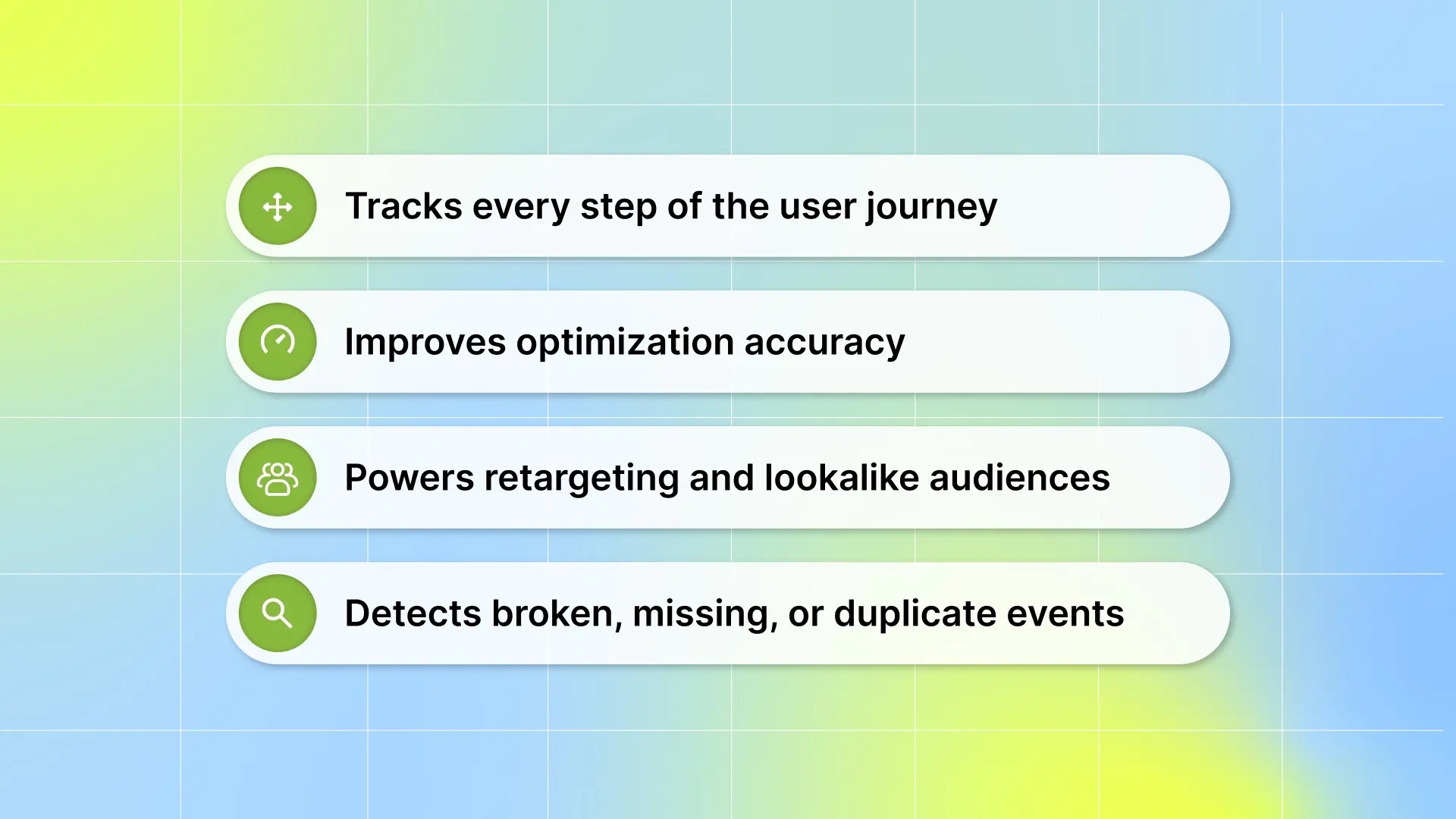
Tracks every step of the user journey so you know which ads drive meaningful actions instead of just clicks or impressions.
Improves optimization accuracy by sending the right signals to Meta, helping the algorithm find more high-value users.
Powers retargeting and lookalike audiences to help you reach users similar to your converters.
Detects broken, missing, or duplicate events so you can fix tracking issues before they drain budget.
With accurate event data flowing into Meta, your campaigns make smarter decisions, scale faster, and deliver more predictable results.
The next step is knowing which events matter most for accurate tracking.
Also Read: Post Back Events & Creative Optimization: Connecting Ad Performance to User Actions
Events You Must Track with Meta Events Manager
To optimize your UA campaigns, you need to track the events that clearly show user intent and real value. These signals help Meta understand which users are worth scaling and which actions drive revenue or retention. If these core events aren’t tracked properly, Meta’s optimization will always push your ads in the wrong direction.
Here are the key ad events you must track:
1. Standard Events
These are predefined actions. Some common examples include:
Page view: Someone visits a key page on your website.
View content: A user views a product, offer, or app item.
Add to cart: A product or item is added to the cart.
Initiate checkout: A user begins the checkout or payment process.
Subscribe: A user starts a free trial or subscription plan.
App install: A user installs your game or app.
Purchase: A successful transaction or order is completed.
2. Custom Conversions
Custom conversions give you more flexibility. These are actions you define based on specific URLs, event parameters, or user behaviors that matter most to your brands.
Once these events are tracked, you need to understand why these ads drive actions and which elements attract the highest-value users. This is where Segwise helps.
Once integrated with Meta, Segwise fetches your data from Meta and turns it into clear creative insights by automatically tagging every hook, visual, dialog, character, and format across your ads. With tag-level performance optimization, you can instantly see which creative elements, themes, and formats drive results across all your campaigns and apps.
To turn these key events into reliable optimization signals, you need a proper setup that ensures Meta accurately captures every action.
How to set up Meta Events Manager for Ad Tracking
To track your installs, purchases, and subscriptions accurately, you need to set up Meta Events Manager correctly. This ensures Meta receives clean signals and optimizes your campaigns toward users who actually convert.
Here are the steps you should follow to set up Meta Events Manager for accurate ad tracking:
Step 1: Open Meta Events Manager

Go to https://business.facebook.com/events_manager/ and log in to your account. Make sure you select the correct business account if you manage multiple apps or stores.
Step 2: Access Your Events Manager Dashboard

Once you log in to your business account, click on Events Manager in the left menu.
Step 3: Connect Your Data Source

Next, click Connect Data to help Meta understand which users bring real value. You need to ensure your data is properly connected.
Then, choose the data source. There are three primary ways to send data into Meta Events Manager:
Meta Pixel (for websites):
Conversions API (for server-side tracking)
App SDK (for apps)
Together, they give a more complete view of customer behavior and help limit the blind spots caused by cookie restrictions or privacy settings.
Most brands start with the Meta Pixel for their website.
Step 4: Create a Meta Pixel

Once you select Web as your data source:
Enter a descriptive Pixel name
Add your website URL
Click Create Pixel.
Meta will scan your site and recommend integration options.
Step 5: Add the Pixel to Your Website to collect data
Once you’ve created the Pixel, you’ll get a small code snippet. You will see two possible paths:
1. Partner integration
If a partner integration is available to you, you'll see it on the screen. Click Next, then follow the on-screen instructions to set up your pixel and events on your partner's website.
If you select Set up with Conversions API Gateway, follow the onscreen instructions to set up the pixel, Conversions API Gateway, and events.
2. Manual integration
Copy the pixel base code.
Find the header of your website or locate the header template in your CMS or web platform.
Paste the base code at the bottom of the header section, just above the closing head (</head>) tag, on every page of your website. Your ID will be included in your base code, and you can use one ID across your whole website.
Click Continue.
Optional: Toggle on Automatic advanced matching and verify the customer information you want to send.
Click Continue.
Step 6: Set Up Standard Events
Once created, your Pixel can now track key actions users take on your website. These are the standard events you can set up. These events help Meta understand which users bring value, enabling your campaigns to optimize for installs, purchases, and subscriptions with greater accuracy.
You can also use the event setup tool to add events and parameters without additional coding. This method doesn’t require touching code and is often easier if you’re not comfortable editing your site manually.
Step 7: Test Events to Make Sure It’s Working
After setup, use the “Test Events tool” in Events Manager. The test events tool lets you:
Verify event setup: Ensure that your app and web browser events are correctly configured and received.
Identify issues: Detect and address any unusual activity.
Web event deduplication: Check which events are processed and which are deduplicated.
Step 8: Use Events in Your Campaigns
Once everything is done, go to Ads Manager. While setting up your ad campaign, choose a conversion goal. Select your Pixel and the event you want to track (like Purchases or Leads) at the ad set level. Now your ad performance will be tied directly to real actions on your site.
With tracking set up, you can now begin adding the events that power your tracking.
How to Use the Event Setup Tool to Add Events
The Event Setup Tool lets you add events without editing your site’s code. You can tag buttons, URLs, or important interactions directly from your browser.
Here are the steps to use it correctly:
1. Go to Meta Events Manager.
2. Click Datasets in the left menu of the page.
3. Select the name and ID of your data.
4. Click the Settings tab at the top of the page.
5. Select Open event setup tool under Event setup.
6. Enter your URL and click Open website. The event setup tool will launch in your website browser.
7. Click Review by each suggested event and then select Confirm or Dismiss.
8. To add events that don't appear in your suggested list, navigate your website as usual to find the buttons or web pages that you want. Select track new button or track a URL and follow the onscreen instructions.
9. Select an event.
10. Set up parameters for your event.
11. Click Finish setup in the event setup tool when you've finished.
12. To view your events, go to Meta Events Manager, select your pixel, and view your event graph and table.
Adding these custom events ensures Meta receives clear signals about the actions that matter most in your funnel. When your events fire correctly, your ad campaigns can optimize for real installs, purchases, and subscriptions instead of relying on guesswork.
Even after you’ve added and tested your events, there are still important gaps Meta can’t fill.
Also Read: Understanding Meta Andromeda for Next-Gen Ad Strategies
Where Meta Events Manager Falls
Meta Events Manager helps you track actions users take after clicking your ads, but it doesn’t provide the deep creative insights or performance visibility you need to confidently scale UA. You get the numbers, not the story behind them, which makes creative decision-making slow and reactive.
Here are the key limitations you should know:
It only shows what converted, not why: you can’t see which creative elements or concepts drove those results.
There’s no creative fatigue detection: you can’t tell when a strong ad starts declining until your CPA or ROAS drops.
It doesn’t compare creative patterns: you can’t see which themes, formats, or ideas consistently bring higher-value users.
It lacks visual creative analysis: you can’t map the creative elements directly to performance metrics that matter for UA decision-making.
So while Events Manager tells you what happened, growth happens when you can interpret the creative patterns behind the data.
From Event Data to Creative Intelligence With Segwise
Setting up Meta Events Manager gives you clean signals, but it still can’t tell you why a particular ad attracts high-value users or why winning ad creatives outperform others. To understand why a particular ad drives users, you need creative-level insights, not just event-level tracking.
This is where AI-powered platforms like Segwise come in. Segwise integrates directly with your Meta data and turns your raw events into clear, creative insights. It shows you which hooks, visuals, dialogs, characters, formats, and storylines drive the strongest users across your UA campaigns.
Here’s how Segwise helps you to collect meta signals and offer creative insights:
AI Creative Tagging: Once integrated, our powerful, multi-modal AI automatically identifies and tags creative elements like hook dialogs, characters, colors, and audio components across images, videos, text, and playable ads to reveal their impact on performance metrics like IPM, CTR, and ROAS. So you can see what actually influenced conversions.
Tag-Level Creative Element Mapping: You can see which specific creative elements drive performance. Discover patterns like "this hook dialog appears in 80% of the top-performing creatives" with complete MMP attribution integration.
Creative Fatigue Tracking: Now, you can catch fatigue before it impacts your budget allocation and campaign results.
Cross-Network Creative Analytics: While Meta Events Manager only tracks Meta activity, Segwise gives you creative performance across Google, TikTok, Snapchat, Unity, and more, all in one unified view.
In short, “Meta shows what converted,” but Segwise helps to show “Now you understand why it converted, and exactly what creative to build next.”
Conclusion
Setting up Meta Events Manager correctly is the foundation of accurate ad tracking. When your Pixel, SDK, and events are properly configured, you send Meta clear signals that help your campaigns optimize for real installs, purchases, and subscriptions. With the right setup, your UA campaigns learn faster, scale better, and deliver clearer insight into what drives performance.
But event tracking alone isn’t enough to understand why certain ads convert better or which creative elements actually attract high-value users. That’s where Segwise becomes essential.
Segwise connects directly with your Meta event data and turns those raw signals into creative intelligence. To integrate with Meta, you just need to go to Segwise Dashboard → Settings → Ad Networks → Connect under Meta → sign in → select your Facebook Ad Accounts, and enable them for full creative analysis across your campaigns.
Segwise is an AI-powered creative analytics platform that helps UA and performance marketing teams understand which creative elements drive performance. It connects creative elements directly to business outcomes (ROAS, CPA/CPI, LTV, IPM, conversion rates), so teams stop guessing what works and start scaling creatives with data-backed confidence.
With this data, you see which hooks, visuals, dialogs, characters, and formats drive performance, and catch fatigue before it impacts your budget allocation and campaign results across your UA funnels. Moreover, Segwise's multimodal AI automatically analyzes and tags every creative element, enabling deep creative intelligence without manual work. It gives you the creative insights Meta can’t provide.
So, if you want to know why your ads convert and what to build next, Segwise gives you the clarity. Start your free trial and start turning your Meta event signals into creative insights that actually scale!
FAQs
1. Will automatic event tracking reduce manual setup?
You can enable automatic tracking for standard events, which saves setup time, but custom events often still need manual configuration to align with specific UA goals.
2. Why is event match quality important?
Event Match Quality (EMQ) measures how well Meta can link event data (e.g., purchases to user identity). Higher EMQ improves attribution, optimization, and audience building.
3. What happens if events are duplicated from the Pixel and CAPI?
Meta deduplicates events automatically when both sources send the same action, but you must ensure your setup sends consistent event names and IDs to avoid inflated metrics.