Integration Docs
Integration Docs
Roku
Roku
Requirements
To set up your Roku ads account, you would need someone who has access to the Roku Ads account to “Sign in with Roku” and grant Segwise permission to your marketing data.
Requirements
To set up your Roku ads account, you would need someone who has access to the Roku Ads account to “Sign in with Roku” and grant Segwise permission to your marketing data.
Step 1: Connect Roku
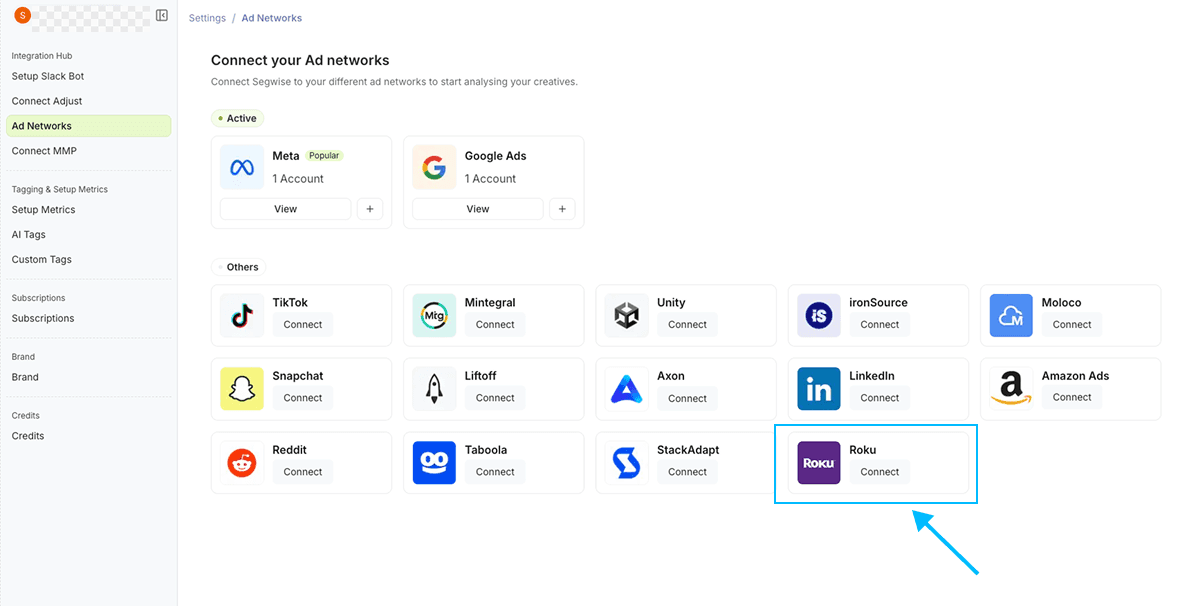
In your Segwise dashboard, go to “Settings” > “Ad Networks”
Click on Connect under Roku
Step 1: Connect Roku
In your Segwise dashboard, go to “Settings” > “Ad Networks”
Click on Connect under Roku
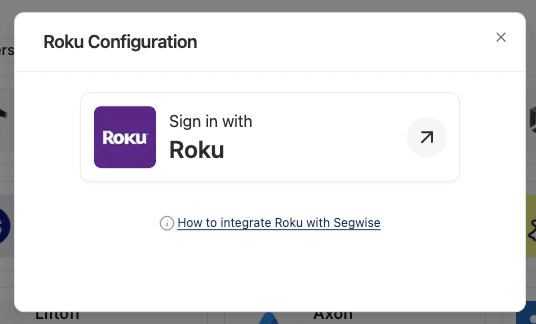
Once the screen loads, click on the Sign in with Roku button
Step 2: Login to your Roku Account
Login to the account with access to your organisation’s Roku Ads
Step 2: Login to your Roku Account
Login to the account with access to your organisation’s Roku Ads
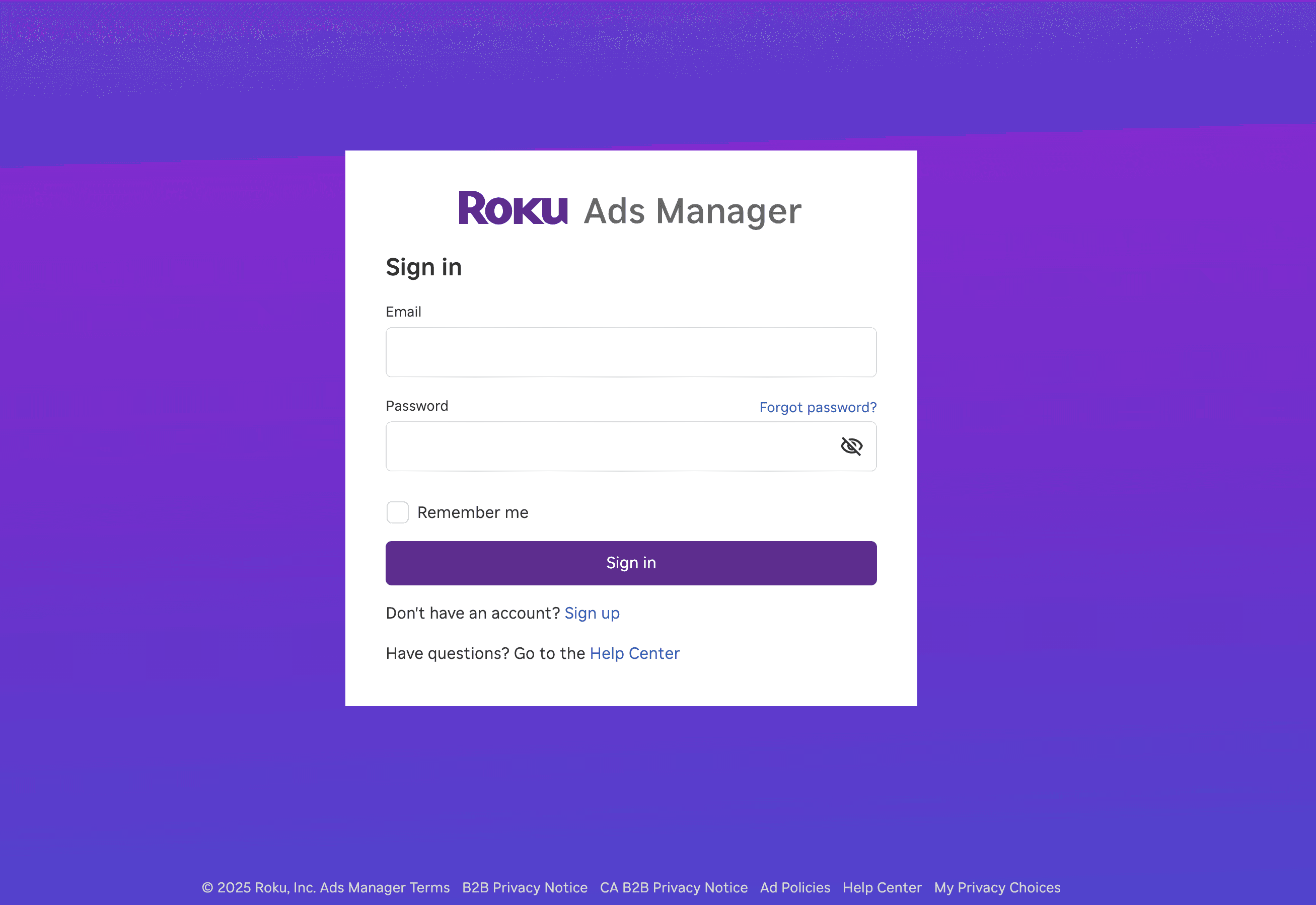
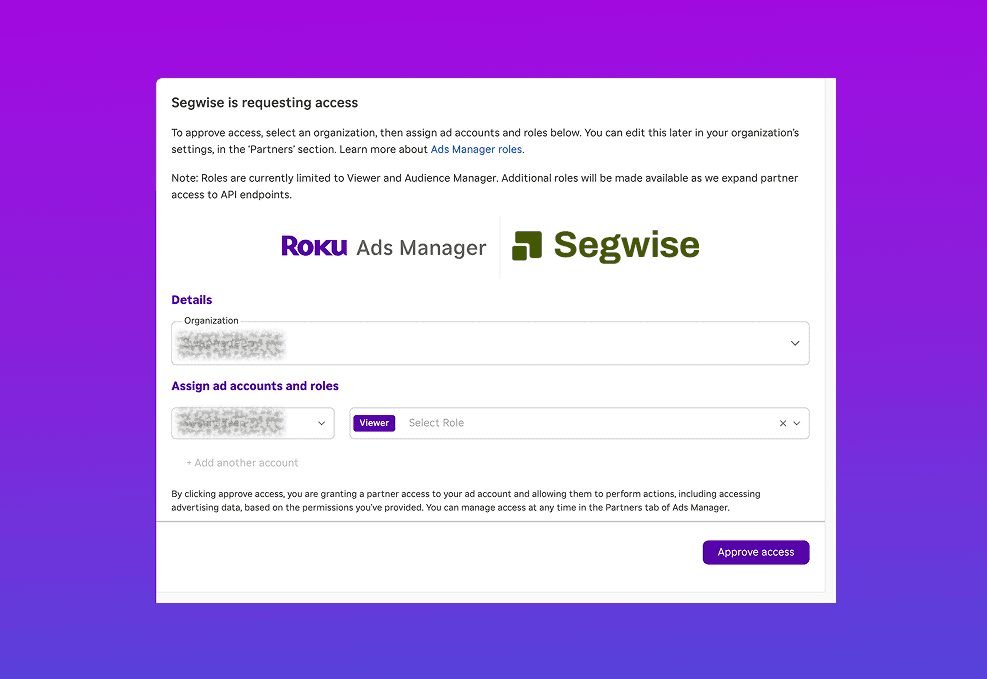
Grant the requested permissions and add as Viewer access to proceed:
Step 3: Choose Roku Ads Account
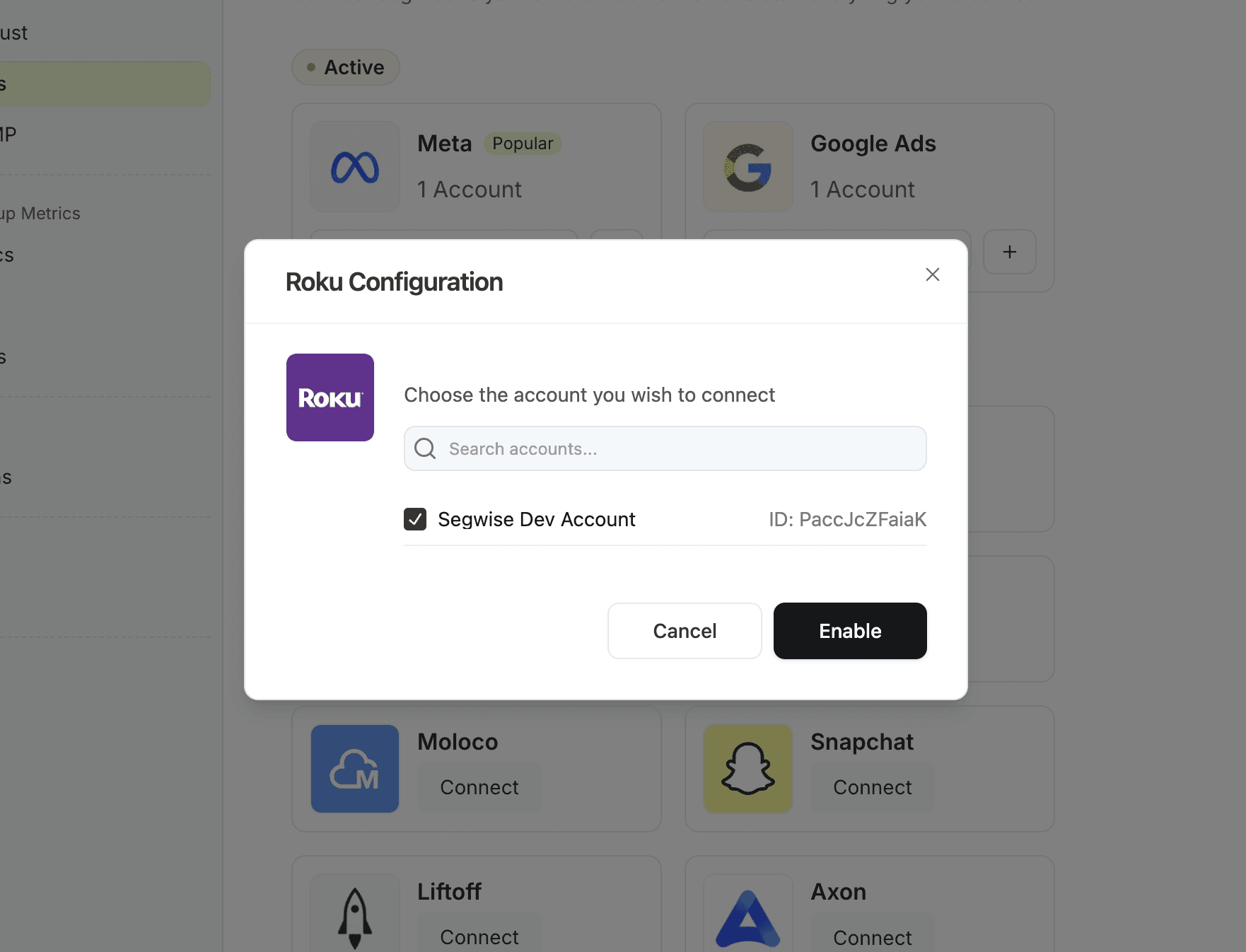
Choose the Roku Ads Account that you want Segwise to connect to. You can connect as many accounts as you wish. For example here the account is Segwise Dev Account.
Click on Enable after selecting your accounts.
Step 3: Choose Roku Ads Account
Choose the Roku Ads Account that you want Segwise to connect to. You can connect as many accounts as you wish. For example here the account is Segwise Dev Account.
Click on Enable after selecting your accounts.