
Dynamic product ads on Meta, now called ads with product media and previously Advantage+ catalog ads, show each shopper products from your catalog based on what they viewed or bought. By default they show your plain catalog image. To beat it, add an image template, a lifestyle image, product video and price overlays, then A/B test one change at a time for at least seven days.
The catalog report shows which products sold, but not whether a person holding the pack outsells a bowl with claim badges or a 30% off bar. Segwise is an AI creative analytics and creative generation platform that tags the product shot, overlays, claims and offer in every Meta ad you run and ties each one to ROAS and purchases. You can see which treatment sells before you build it into a catalog template, then make new statics from the winner.
This guide is for DTC and ecommerce teams running catalog campaigns on Facebook and Instagram. It sits under our guide to scaling Meta ads. Every Meta feature below links to Meta's own Help Center or developer docs.
TL;DR
If you are new to catalog ads: they need three things: a product catalog, a Meta pixel or app SDK sending events that match your product IDs, and a product set. Meta picks the product for each person; you control how it looks.
If your catalog ads look like everyone else's: build an image template in Commerce Manager (logo, background, price field, a sticker) in 1:1, 4:5 and 9:16. Frames are being retired in early 2027, so move to templates now.
If you are deciding on overlays: use Meta's dynamic overlays for a real sale or free delivery, keep prices within the character limits, and remember they only show on Facebook Feed. Never bake an offer into the catalog image itself.
If you want to know what works: run a Meta A/B test with one layer changed, for at least seven days, and judge it on cost per purchase. Use the product treatments that win in your other ads to pick what to test first.
What are dynamic product ads on Meta?
Dynamic product ads are Meta ads that build themselves from your product catalog. Instead of designing one ad per product, you upload a catalog (a feed of product IDs, titles, prices, images and links) and Meta shows each person the products they are most likely to buy. Meta's Help Center describes them as ads that "show people the most relevant products or services from your catalogue based on their interests, intent and actions online."
The format has had three names. It started as dynamic ads (often called DPA, for dynamic product ads), became Advantage+ catalog ads, and Meta's Help Center now calls it "ads with product media (previously called Advantage+ catalogue ads)." Many marketers still say DPA or catalog ads, so this guide uses all three names.
Dynamic product ads are not the same as dynamic creative optimization. DCO mixes headlines, images and copy you supply to find the best combination. Catalog ads swap in products from your feed for each person. If you came here for the first, read our guide to dynamic creative optimization.
How catalog ads work: catalog, events and product sets
Meta's developer docs list three parts. A catalog feed delivers "images, descriptions, and prices in your ads." A Meta pixel or app events report which products people view, add to cart and buy, and "the product ID reported by Meta Pixel (or app events) must EXACTLY match the ID column" in your feed. A product set decides which products an ad may show.
Meta uses these for three jobs: retargeting people who viewed a product and didn't buy, reaching new people who may like your products, and cross-selling or upselling to past buyers.
What changed in Meta's catalog campaign setup
Meta has changed how new catalog sales campaigns are set up:
The Advantage+ catalog ads switch is gone. You keep Product data on at the campaign level (it is on by default if you have a catalog) and choose Product media as the creative source for each ad.
You pick the catalog once per campaign, and each campaign can use only one catalog.
Using a catalog "no longer means that product media will necessarily appear in your ads." Each ad can use product media or your own uploaded media.
You pick the product set at ad level and the dataset (pixel or SDK) at ad set level.
The practical result: catalog ads and your designed product ads can now sit in the same campaign, fed by the same product data. That makes a fair comparison between them much easier to set up.
Why the default catalog image is hard to beat by accident
The default catalog ad shows your main product image (the image_link in your feed) with the product title and price pulled into the ad text. Meta's product image specifications push that image toward a clean packshot: "Use product images with a white backdrop," and "Don't include text in your images that overlays the product, calls to action, promo codes, watermarks or time-sensitive information such as temporary price drops."
So the fix is not to stuff offers and claims into the catalog image. That breaks Meta's guidance, and the old offer keeps showing long after the sale ends, because a replaced image needs a new URL before Meta refreshes it. The fix is to add creative in the layers Meta puts on top of the clean image when the ad is shown.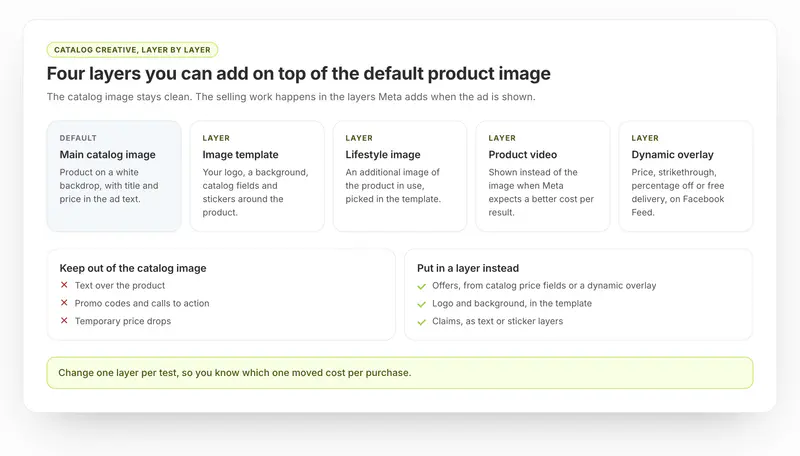
How to improve catalog creative beyond the default image
There are four layers you can add on top of the default image: an image template, a lifestyle image, product video and a dynamic overlay. The first three are below and overlays get their own section next. Two settings round them out: the catalog fields in your ad text and which Advantage+ enhancements stay on. Start with the template and the lifestyle image, because they change how every product in the ad looks at once.
Build an image template in Commerce Manager
Image templates let you "design a custom, branded ad layout by combining product images from your catalogue with text, logos, backgrounds and more." You build one in Commerce Manager under Image templates, then pick it in Ads Manager when the creative source is your catalog. They work in single image, carousel and collection formats.
A template is built from layers:
Product layer (required): the product image, with optional background removal and crop to fit. You choose which image to show: 0 is the main image and 1 to 3 are your additional images.
Catalog field: title, brand, price, sale price or custom labels, pulled live from the feed.
Image, text and sticker layers: your logo, a claim such as "16g protein", or a shape with text.
Background layer: one color behind everything.
Two features make templates more useful than a static frame. Conditional display shows a layer only when a product attribute meets a rule, such as a "Sale" text layer that shows only when a product has a sale price. Meta says conditional display works on catalog field, image and text layers, not on stickers. And you can make 1:1, 4:5 (Feed) and 9:16 (Stories and Reels) versions, which Meta says "maximises the placements that your templates can be delivered to."
When you apply a template, Meta recommends turning off background generation so it doesn't replace your design, turning off dynamic overlays unless you want them on top, and keeping image touch-ups on so the 4:5 and 9:16 versions can deliver.
If you still use frames, plan the move now. Meta's frames article says "Frames will no longer be available starting in early 2027," and frames don't show on Instagram placements anyway.
Add lifestyle images as additional images
Meta recommends "four or more images" per product and says "you may want to include lifestyle images, such as of people using or wearing the product." Keep the white-backdrop shot as the main image and add a lifestyle shot as an additional image. A template's product layer can then show image 1 instead of image 0, which gives you a clean test of lifestyle against packshot without touching your feed.
Let product video show where it can
For new catalog ads, Meta shows product images or videos automatically, based on "what they're more likely to respond to." If a product has no video, the image shows. Upload video in 9:16 for Stories and Reels and 4:5 or 1:1 for Feed, or it may be cropped. Remove promotion or seasonal videos from the catalog when the campaign ends so they don't keep running.
Pull catalog details into the ad text
By default the ad text carries the product title and price. In the primary text, headline and link description fields you can add more catalog fields, such as brand or a custom label. A short benefit line plus the product name usually reads better than the title alone.
Decide which Advantage+ creative enhancements to keep
Meta's list of Advantage+ creative enhancements includes dynamic overlays, image touch-ups, standard labels and AI background generation for catalog ads. Meta's developer docs also describe a Hide price option that hides the price "when it is likely to improve performance." Some enhancements are on by default. Turn off anything that fights your template, and treat each one you keep as a test variable, not a free win. Our Advantage+ guide covers what to automate and what to keep control of across the rest of your account.
How Segwise shows which product treatment sells
Tag every Meta ad by how the product is shown
A catalog ad changes the product for every person, so it is hard to learn creative lessons from it directly. Your other Meta ads are where those lessons sit: the designed statics and videos where you already tried a person holding the pack, a bowl with claim badges or an offer bar. Segwise Creative Tagging reads every one of those ads once you connect Meta, with no uploads, and tags what is inside it: the product shot, overlays and claims, the offer, people and visual style. It uses 20+ standard tags, plus custom tags such as "Product image treatment" for anything specific to your catalog.
Rank product treatments by ROAS
Each tag is tied to spend, CTR, ROAS and purchases, so the tags become a ranking. In the example below, Surrplus groups its Meta ads by product image treatment. Ads with a person holding the pack return 2.9x ROAS on 17% of spend, while pack shots with a bold headline take the most spend, 34%, at 2.0x.
That points to the first catalog test worth running: a template whose product layer shows a lifestyle image instead of the white-backdrop shot. It also tells you what to stop briefing. The two-ad product lineup sits last at 1.5x.
Pick your first catalog test: Segwise lets you rank every Meta ad by product shot, overlay and offer, so your first template test starts from a treatment that already sells for you. Book a demo.
Ask, make and score from the same data
Three more things you can do with the same data:
Ask a question in plain English. In the Creative Strategy Agent, or from Claude or ChatGPT through the Segwise MCP, ask "Across my Meta ads in the last 30 days, which product image treatment has the best ROAS, and which overlay claims appear in my top ten ads?"
Make new ads from the winner. The Creative Generation Agent lets you make statics and videos up to 30 seconds from your own winning patterns, exported to the sizes each placement needs, for your hero products.
Score a template before you spend. Save screenshots of a few template previews and run them through Pre-flight Testing: up to 10 images at a time, each scored out of 100 against your winning ads, with a Run, Refine or Hold verdict.
You can use each agent on its own, or do it all in one place by chatting with the Segwise agent: ask how your ads are performing, see what competitors are running, and make new ads from your winners.
Segwise does not build Commerce Manager templates or edit your catalog. Your team still makes the template and runs the Meta test; Segwise shows which treatment to try in it. A treatment that wins in your designed ads is a hypothesis for your catalog ads, not a guarantee, so confirm it with the A/B test below. If you run almost only catalog ads, with few designed statics or videos, there is little treatment data to rank, and you don't need Segwise yet: start with Meta's template A/B tests on their own. See how it fits a DTC and ecommerce team.
Do overlays help on catalog ads?
Overlays help when the overlay is a reason to buy now: a real discount, a sale price or free delivery. They do little when they just repeat the price that is already in the ad text, and they can work against a premium brand whose selling point isn't price.
Meta's dynamic overlays show catalog data "such as prices or discounts in a label on your ad media." The options are price, strikethrough price, percentage off and free delivery. Three limits matter before you turn them on:
Placement: "Dynamic overlays only show on Facebook Feed." Your Instagram and Reels catalog impressions won't show them, so put any offer you need everywhere in the template instead.
Free delivery only appears if the product's delivery cost is set to 0.0 in your catalog.
Character limits: each shape has a limit that includes the price, currency symbol and spaces.
Worked example: will your price fit the overlay?
For a strikethrough price Meta says to "limit both prices to six characters each, including any symbols and spaces." So a strikethrough with cents works only for prices under $100. Above that, drop the cents, use percentage off, or use a rectangle.
Overlay in the template or a dynamic overlay?
Use a dynamic overlay when the offer changes per product and you mainly buy Facebook Feed: Meta reads the sale price from the feed and can choose when to show it. Use a template layer (a catalog price field, or a text layer with conditional display) when you need the offer on Instagram and Reels too, or when you want exact control over how it looks.
Which catalog creative should you use? A decision rule
Use this table to decide where to start. The thresholds marked as rules of thumb are ours, not Meta's; the others come from Meta's Help Center.
Meta also recommends the default "All products" set for the best overall performance, and optimizing on purchases rather than view content or add to cart. Get both right before you judge any creative.
How to test catalog creative on Meta
Meta's own advice is to use its A/B test tool, not to compare ads by switching them on and off. The A/B testing guide says informal testing "can lead to inefficient ad delivery and unreliable test results," while an A/B test splits the audience so "nobody sees both."
Step 1: Write a one-layer hypothesis
Change one thing: the template, the product image index, an overlay or video. Meta's A/B test best practices say results are clearer when ad sets are "identical except for the variable that you're testing." Write it as a prediction: "A template showing the lifestyle image will lower our cost per purchase against the white-backdrop image."
Step 2: Set up the A/B test in Ads Manager
Click A/B test in the Ads Manager toolbar and choose Make a copy of this ad, then change only your one layer. Keep the product set, audience and budget the same. In the Experiments tool you can compare up to five versions at once, which suits a round such as plain, template, template plus lifestyle image, template plus overlay. Don't let another campaign target the same audience during the test, as Meta says overlap can "contaminate A/B test results."
Step 3: Run it for at least seven days
Meta says: "For the most reliable results, run tests for at least seven days." You can run tests for up to 30 days. If your customers usually take more than seven days to buy after seeing an ad, Meta suggests a longer test, such as ten days.
Step 4: Judge on cost per purchase, then test the next layer
Meta picks the winner by "the lowest cost per result for your selected key metrics." Set purchase as that metric, and check ROAS next to it, since a template that lifts clicks but not purchases hasn't won. Keep the winner as the new control and test the next layer against it. For budgets per test and kill rules across your whole account, see our creative testing framework.
Testing catalog ads against your designed product ads
Since a catalog no longer forces product media into every ad, you can run both in one campaign. To compare them fairly, A/B test two ads that differ only in creative source: Product media against Manual upload, with the same product set behind both. Run it once for your hero products and once for a wide product set; the two results tell you where design time pays off.
What to change first in your dynamic product ads
Dynamic product ads beat the default product image when the selling work moves into layers: an image template, a lifestyle image, product video and, where there's a real offer, an overlay that fits Meta's limits. Keep the catalog image itself clean. Start by checking your catalog match rate, then move any frames to a template in all three ratios. Then run one seven-day A/B test on the product treatment your other Meta ads already show selling best.