To run a Meta app install campaign in 2026, choose the app promotion objective and keep Advantage+ on: campaign budget, country, language and OS targeting, and automatic placements. Pick one of four performance goals, start on highest volume bidding, load up to 50 images or videos, and budget for about 50 optimisation events a week.
Refreshing those ads is tricky, because each new ad you add restarts learning. Segwise is an AI creative analytics and creative generation platform that scores each new batch against your current winners before it goes in, shows which hooks and offers drive installs and ROAS, and lets you make the next batch from them.
This guide is the setup manual. It follows Meta's Business Help Centre and developer docs, and it adds the parts those docs leave scattered: how much budget the learning phase really needs, how to refresh creative without resetting learning every week, and how iOS measurement changes the build. If you want Meta's creative automation features instead (image touch-ups, text generation, enhancements), read our Advantage+ ad creation guide. That post covers creative features. This one covers the app campaign itself.
TL;DR
- If you are launching your first app campaign: register the app, connect the Facebook SDK or your MMP, choose the app promotion objective and leave every Advantage+ section on.
- If your purchase or trial event is rare: optimise for installs or a more frequent app event until you can buy about 50 of the deeper event each week.
- If you are choosing a bid type: start on highest volume. Add a cost target only after you know your real cost per event. Use bid cap only if you can calculate the bid.
- If you are loading creative: upload many genuinely different concepts at once, then refresh in batches, 2 to 4 times a month, never one ad at a time.
- If you advertise on iOS: build a separate iOS 14+ campaign, pick Aggregated Event Measurement (AEM) or SKAdNetwork (SKAN), and wait a few days before you judge results.
- If you want to know which creative elements win: Meta reports per ad and per image, video, text and headline, but we found no Meta page describing hook, scene or offer analysis across ads, and its fatigue recommendations aren't available for these campaigns. Track elements yourself.
What are Meta Advantage+ app campaigns in 2026?
Advantage+ app campaigns are Meta's automated campaign type for app installs and in-app events. Meta's developer docs say they were "formerly known as Automated App Ads". According to Meta's Business Help Centre, they "use Meta AI to help optimise your bidding, audiences and placements." You supply the app, a budget, a performance goal and creative. Meta decides who sees which ad, and where.
What changed in Advantage+ app campaigns recently?
Three things changed recently:
- Advantage+ is now the default setup, not a separate product. When you pick the app promotion objective in Ads Manager, you land in what Meta calls the Advantage+ campaign experience, with an "Advantage+ On" label in the top right. Manual features are still there. But if you narrow budget, audience or placements too far, that section flips to "Advantage+ off" and you are no longer running an Advantage+ campaign.
- The old API route is closed. Meta's Marketing API guide says legacy Advantage+ app campaigns "will not be able to be created on any API version with the release of v25.0." New ones are standard campaigns with Advantage+ audience, campaign budget and placements all switched on. Migrating an old one "will force the campaign into the learning stage", so plan the move for a quiet week.
- Catalogue ads are built in. The Help Centre notes that app campaigns "are now integrated with Advantage+ catalogue ads", so you can pull images from a product catalogue when you build the ad set.
What you give up with Advantage+ app campaigns
Meta's targeting page for app campaigns is blunt: "the only targeting options available are operating system, countries and language." No interests, no lookalikes, no custom audience inclusions, no gender, no device targeting. People who installed or opened your app in the last 90 days are excluded automatically. You can't use the traffic, engagement, leads or sales objectives for these app ads either. With so few audience inputs, the creative you upload does most of the work of finding the right people.
Before you start: what needs to be in place
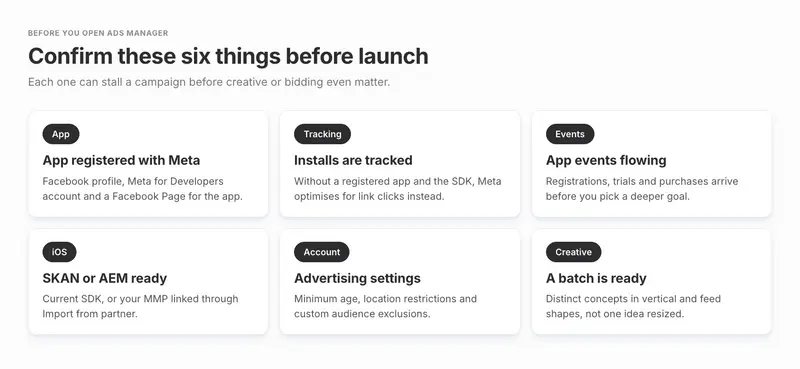
Check these before you open Ads Manager. Each one can stall a campaign before creative or bidding even matter.
- The app is registered with Meta. You need a Facebook profile, a Meta for Developers account and a Facebook Page for the app, according to Meta's app registration guide.
- Install tracking works. This is the check people skip. Meta's app ads overview warns that without registration and the SDK, "your ads will automatically optimise for link clicks rather than app installs." You can launch, but you'll be buying clicks.
- App events are flowing. Installs, registrations, trial starts and purchases should arrive from the Facebook SDK, the Conversions API or your MMP before you pick a deeper performance goal.
- For iOS: the Facebook SDK for iOS is version 16.2.1 or later, or your MMP's SDK supports SKAN and is set up through "Import from partner" in Events Manager. Meta's SKAN preparation guide covers both routes.
- Account-wide limits live in Advertising settings. Minimum age, location restrictions and custom audience exclusions are set at account level, and these account controls "will not affect your campaign's Advantage+ state."
- A creative batch is ready. Have a set of genuinely different concepts sized for vertical and feed placements before launch. The creative section below explains why.
How to set up an Advantage+ app campaign, step by step
These steps follow Meta's campaign creation guide. Labels in Ads Manager shift often, so match the section names rather than exact button positions.
Step 1: Open Ads Manager and click + Create
Choose App promotion, then Continue. Check that Advantage+ shows as On in the top right.
Step 2: Name the campaign clearly
Ads Manager has no filter for Advantage+ app campaigns, so a naming pattern such as app, platform, country, goal and date saves real time later.
Step 3: Choose your app and store
Pick the app and the store it's listed in (Google Play or the App Store). For iOS, decide whether this is an iOS 14+ campaign. You then choose AEM or SKAN as the attribution method in the ad set. The measurement section below explains the choice.
Step 4: Set the budget at campaign level
Keep "Campaign budget" (Meta's Advantage+ campaign budget). Advantage+ stays on with campaign budget and one or more ad sets. You turn it off if you run "multiple ad sets in your campaign and are not using campaign budget."
Step 5: Pick the performance goal
Installs, link clicks, app events or value. Use the decision rule in the next section.
Step 6: Pick the bid type
Highest volume first, a cost target later, bid cap rarely.
Step 7: Set the audience
Add the countries (or worldwide), the operating system, and a language only if you need one. Leave the rest alone.
Step 8: Leave placements on Advantage+
Excluding any placement, or opting out of mobile or desktop, turns Advantage+ off. If you must exclude one, Meta's "Allow limited spend to excluded placements" option lets up to 5% of the budget go to each excluded placement when that's likely to help.
Step 9: Build the ads in bulk
Upload images, videos, playables or Instant Experiences, add up to 5 primary texts and 5 headlines, and let Ads Manager create the ads in one pass. Publish, then leave it alone until learning ends.

Which performance goal should you choose?
Meta's performance goals page lists four goals for app campaigns. Each one pairs with a main KPI:
| Performance goal | Optimises for | Judge it on |
|---|---|---|
| Maximise number of app installs | Installs | Cost per install (CPI) |
| Maximise number of link clicks | Clicks to the store | Cost per link click |
| Maximise number of app events | A chosen in-app event | Cost per event, ROAS |
| Maximise value of conversions | Purchase value (lowest cost bidding only) | ROAS |
The goal is the most important setting in the build, because Meta optimises toward exactly what you name. The catch is volume. An ad set leaves the learning phase "after about 50 results in the week after the ad set's last significant edit." Choose an event you can't buy 50 times a week and the ad set sits in "Learning limited" indefinitely.
The 50-events-a-week rule for choosing a goal
This decision rule is a rule of thumb, not a Meta rule. Multiply your expected cost per event by 50. That is the weekly budget the goal needs. Pick the deepest event whose weekly number fits inside your budget.
Worked example: which goal fits Echo's budget?
Here's how that plays out for Echo, a demo language-learning app, with illustrative numbers:
| Goal for Echo | Expected cost per event | Weekly budget to reach about 50 events | Daily budget |
|---|---|---|---|
| Installs | $2.50 per install | $125 | about $18 |
| Trial starts (app event) | $20 per trial | $1,000 | about $143 |
| Purchases (value) | $60 per purchase | $3,000 | about $429 |
If Echo has $1,000 a week for Meta, it should optimise for trial starts, not purchases. At $3,000 or more, a value campaign becomes realistic. The weekly figure is a floor, not a target: CPA is usually higher during learning, so leave headroom.
When do link clicks or value optimisation make sense?
Link clicks rarely make sense for growth. Use them only when you can't track installs yet, and fix tracking quickly. Value optimisation needs purchase events with values attached and only works with the lowest cost bid type.
To compare two goals fairly, Meta suggests keeping the same country, language and operating system and changing only the goal.

Budget and bidding: highest volume, cost per result goal or bid cap?
Meta's bid types page lists three options for Advantage+ app campaigns:
- Highest volume spends the budget to get as many results as possible, with no cost target. Meta's best practices page recommends it: app campaigns "typically receive more results and spend their entire budget when using lowest cost without a bid cap."
- Cost per result goal tries to hold an average cost per result. Meta adds that "adherence to cost per result goal limits is not guaranteed." Use it once you have two or three weeks of real cost data and a hard unit economics limit.
- Bid cap sets a maximum bid in each auction. It's "meant for advertisers who have a strong understanding of predicted conversion rates and can calculate the right bid." Most teams don't have that, and a cap set too low leaves budget unspent.
Why budget changes count as edits
Meta's page on significant edits says budget changes may or may not reset learning depending on size. Its example: USD 100 to 101 is fine, USD 100 to 1,000 may send ad sets back into learning. So raise budgets in modest steps a few days apart, not in one big jump.
One Advantage+ app campaign or several?
The best practices page says you can run as many Advantage+ app campaigns as you need, for example one per app event, region or creative test, but warns that "multiple overlapping campaigns targeting ads to the same audience can lead to poor delivery." Split campaigns by things that really differ, such as platform, region or goal, not by small variations that compete for the same people. Every extra campaign also splits the 50-events-a-week budget.
How many creatives should you load, and how often should you refresh them?
Meta's creative recommendations page gives the numbers:
- Up to 50 unique images or videos at a time, up to 5 primary texts and up to 5 headlines. The app campaigns overview adds that there's no limit on the total number of creatives you can upload.
- Bulk create up to 50 ads at once.
- Use the maximum. The page reads: "we recommend using the maximum number of ad creatives to achieve better performance."
- Refresh 2 to 4 times a month. In Meta's words: "We recommend changing your ad creative 2-4 times per month to sustain performance."
- Formats: images, videos, playable ads, Instant Experiences and catalogue images.
The refresh paradox in Meta's own advice
Meta's advice pulls in two directions. The app campaign pages say to load as many creatives as possible and refresh often. The learning phase pages say adding a new ad to an ad set is a significant edit that restarts learning. They also say to "avoid high ad volumes", because the system "learns less about each ad" when there are many.
You can follow both if you treat refreshes as planned events:
- Batch your refreshes. Add a whole set of new ads in one edit, not one ad on Monday and two more on Thursday. Each addition is a separate reset.
- Refresh only after learning ends. If the Delivery column still says "Learning", wait. Meta's best practices page calls changes during learning "not recommended."
- Match cadence to volume. If your ad set reaches about 50 events in three or four days, refreshing every week or two is fine. If it takes the full week, stay at the low end (twice a month).
- Keep the winners running. Add new concepts next to proven ones. Don't swap the whole library at once.
- Make the batch genuinely different. Ten resizes of one idea give the system nothing new to choose from. Vary the hook, the opening scene, the offer, the format and the person on screen.
For more on how many concepts a Meta account needs as spend grows, see our guide to creative volume for scaling Meta ads.
Drop weak ads before a reset: Segwise lets you score each new ad against the ads already winning in your account and get a run-or-hold verdict before it joins the batch. Start a free trial.
Creative specs that matter for app installs
Placements are automatic, so build for the main shapes. Meta's ads guide lists 9:16 at 1440 x 2560 pixels for Instagram Reels app install video, and 4:5 at 1440 x 1800 pixels for Facebook Feed app install video, with a 27-character headline. For Reels, keep at least 14% of the top, 35% of the bottom and 6% of each side free of key text and logos, and avoid licensed music. A playable is worth including for games and for apps with a core action that's easy to try in a few taps.
Should you use an AI video ad generator for app install campaigns?
Yes, if it helps you make more distinct concepts, not just more files. App campaigns reward range, and video production is usually the bottleneck. A good AI video ad generator for app installs should do four things:
- Start from what already wins in your account, not from a generic prompt.
- Export vertical and feed versions to each network's specs, so you aren't resizing by hand.
- Make genuinely new concepts, such as a new hook, a new on-screen person or a new offer, as well as variants of winners.
- Feed results back, so the next batch learns from the last one.
What about Advantage+ creative, the Meta feature that builds variations from an image or video? Meta's docs disagree on whether app campaigns get it. The campaign creation guide says you can add Advantage+ creative to sales, app promotion or leads campaigns. The creative fatigue page says it's only available for traffic or sales campaigns with a website destination. Check what your own Ads Manager offers, and see the Advantage+ ad creation guide linked above for how those features work. Either way, enhancement tools vary an asset you already have. They don't tell you which concept to make next.
Segwise can help here. The Creative Generation Agent lets you make statics and videos up to 30 seconds, including AI UGC-style ads, from the hooks, scenes and offers that win in your own data, exported to each network's specs. Your team reviews and edits every draft. More on how it fits below.
Measurement: SKAN, AEM and your MMP
Android
Android app campaigns report installs and events in Ads Manager as normal. Meta notes that Android and non-SKAN campaigns show "reach, impressions, clicks, results and spend." Your MMP's numbers will differ a little from Ads Manager's, which Meta puts down to "different attribution windows for each app event."
iOS 14+ campaigns
For people on iOS 14 and later, Meta's iOS campaign guide says you create a specific iOS 14+ campaign, then choose one of two attribution methods in the ad set:
- Aggregated Event Measurement (AEM) is Meta's own method. According to Meta's attribution methods page, it supports 1-day click attribution for install optimisation, 1-day or 7-day click for app event and value optimisation, and 1-day view-through for installs in an Advantage+ app campaign. Reporting is near real time.
- SKAdNetwork (SKAN) is Apple's framework. Apple sets the attribution rules, and SKAN reporting "has delays of at least 24 hours."
The iOS 14+ rules that shape your build:
- Up to 24 campaigns per app, according to the Help Centre. An older developer page dated October 2023 still says 9 campaigns per App ID. Plan around the Help Centre figure, but don't be surprised by older tooling that assumes 9.
- One ad set per Advantage+ app campaign, with a fixed optimisation choice.
- Advantage+ setup only. For these iOS ads, "Manual setup is not supported."
- SKAN campaigns show reach, impressions, clicks and spend in delivery information, but not results. You'll judge SKAN creatives on conversion data that arrives later.
- Don't lower conversion values or use lock windows in your SKAN setup. Meta's SKAN guide advises against both for better optimisation and reporting.
Which method should you pick? If your MMP and app are SKAN-ready and you want numbers you can compare across ad networks, SKAN is the cross-network view. If you can't prepare SKAN, you can use AEM instead. Many teams run AEM for faster optimisation feedback and read SKAN alongside it. Singular's 2023 AEM support note says marketers "can enable AEM in parallel with SKAdNetwork." Since 9 October 2024, Meta has also sent AEM reporting to MMPs. Expect the two methods to disagree, especially right after launch and at low volume. Meta's reporting differences page advises you to "allow a few days for the data to become stable before making comparisons." Our breakdown of Meta AEM vs SKAN goes deeper on the trade-off, and our guide to testing creatives under SKAN covers the delayed data problem.
Your MMP
With an MMP (AppsFlyer, Adjust, Branch, Singular or Kochava), connect it to Meta through Events Manager, use the partner's URL for SKAN setup, and make sure event names are defined the same way in the MMP and in Meta. Treat the MMP as the source of truth for cross-network budget decisions and Ads Manager as Meta's view of its own delivery. Decide which numbers you use for which decision before launch, so nobody argues about it mid-test.
How the learning phase works in app campaigns
The learning phase is the period when Meta's delivery system is still working out how to deliver an ad set. Costs are less stable and, as Meta puts it, ad sets "usually have a higher CPA." It ends after about 50 results in the week after the last significant edit.
Meta's list of significant edits is the list to stick on the wall:
- any change to targeting
- any change to ad creative
- any change to the optimisation event
- adding a new ad to the ad set
- pausing the ad set for seven days or longer
- changing the bid strategy
- large changes to budget, bid control or cost target amounts
If the Delivery column reads Learning limited, the ad set isn't likely to get about 50 optimisation events a week. Meta's learning limited page names the usual causes: small audience, low budget, a low bid or cost control, audience overlap, an infrequent optimisation event, or "running too many ads at the same time." The fixes in order of ease: combine campaigns that target the same people, raise the budget, remove a tight cost control, or switch to a more frequent event, such as trial start instead of purchase.
On iOS, give SKAN campaigns extra patience. Results arrive later, so a campaign can look worse than it is in the first few days.
Common mistakes with Meta app install campaigns
| Mistake | What happens | Fix |
|---|---|---|
| Launching before the SDK or MMP tracks installs | Meta optimises for link clicks, and installs show zero | Confirm install events arrive in Events Manager first |
| Optimising for an event you can't buy 50 times a week | Permanent "Learning limited" and unstable costs | Use the 50 x cost per event rule and step down to a frequent event |
| Adding ads one or two at a time | Each addition resets learning | Refresh in planned batches, after learning ends |
| Uploading 30 versions of one idea | The system has nothing new to choose between | Vary hooks, scenes, offers and formats |
| Running overlapping campaigns for the same country and goal | Campaigns compete for the same people | Split only by platform, region or goal |
| Excluding placements by habit | Advantage+ turns off for that section | Keep placements on, or use limited spend for exclusions |
| Setting a tight bid cap on day one | Budget goes unspent | Start on highest volume, add a cost goal later |
| Judging iOS results in the first 48 hours | Decisions based on data that hasn't arrived yet | Wait a few days, then compare AEM, SKAN and your MMP |
| Reading only Meta's per-ad and per-asset tables | You know which ad or video won, not which hook or scene | Track creative elements across ads and networks |
| Waiting for Meta to flag fatigue | Meta's fatigue recommendations aren't available for app campaigns | Set your own fatigue alerts on cost and spend share |
How do you know which creatives win inside Advantage+ app campaigns?
Meta's creative reporting page says you can see how your images, videos, primary texts and headlines perform, with results shown by ad on the Ads tab. You also get breakdowns by age, gender, country, device, platform and placement, though the best practices page notes you "won't have the option to see reporting insights for specific placements." Meta's Ads Reporting also has an ad creative breakdown that shows results for each creative, such as which of several videos does better. We found no Meta page describing analysis by creative element across ads in app campaigns (checked on 2 November 2026). That means seeing whether face-to-camera openers beat app screen recordings in every ad that uses them, or which offer wins across ten different videos.
Two gaps in Meta's reporting for app teams
Two more gaps matter for app teams:
- Fatigue recommendations aren't available. The creative fatigue page lists "Meta Advantage+ app campaigns" among the setups its fatigue recommendations feature doesn't cover. So you can't rely on Meta to warn you when an app campaign ad wears out.
- Meta sees only Meta. If you also buy on TikTok, Google, AppLovin (Axon) or Unity, the question of which concept to scale is a cross-network one, and your MMP holds the install and revenue truth.
Element-level creative analysis across networks
This is where Segwise helps. It tags every creative element (hooks, opening scenes, on-screen text, characters, offers, CTAs, audio) with multimodal AI and maps each one to installs, cost per install, trial starts and ROAS. It pulls from 15+ ad networks, Meta included, plus any of the five supported MMPs if you use one. Setup is no-code: some networks connect with an OAuth sign-in, while AppLovin, Mintegral, Unity and Moloco ask for an API key from the network's dashboard. So instead of "ad 14 won", the team sees "the day-streak hook wins on iOS and Android, and logo-first intros cost the most per trial." Use those findings to brief the next batch. For more on reading Meta creative data this way, see our page on creative analytics.

Scoring, fatigue alerts and new batches for the refresh cycle
Segwise also helps with the refresh problem described above:
- Score the batch before you add it.Pre-flight Testing scores up to 10 images or short videos out of 100 against the ads already winning in your account, gives a run-or-hold verdict and flags placements where a file isn't eligible, such as a square video that clears Feed but not Stories. Because every new ad resets learning, it pays to drop the weak ones before they cost you a reset.
- Catch fatigue without Meta's recommendations.Fatigue tracking watches for a sustained decline in your chosen metric and spend share, with thresholds you set, and alerts by email or Slack. That gives you a trigger for the next planned refresh. Our guide to catching creative fatigue explains which signals to watch.
- Make the next batch from your winners. The Creative Generation Agent lets you turn the winning elements into new statics and videos, and playables are delivered as a managed service, so each refresh batch starts from evidence.
You can use each agent on its own, or do it all in one place by chatting with the Segwise agent: ask how your ads are performing, see what competitors are running, and make new ads from your winners.

Where Segwise stops, and when you don't need it
Segwise has limits too. It doesn't change bids, budgets or targeting in Ads Manager, and it can't make Meta report placement detail that Meta doesn't share. Pre-flight needs connected ad network data to benchmark against, so a brand-new account with no history has nothing to compare with. History import covers 14 days on the trial and 3 months on paid plans. If you run one app on Meta only, with a handful of ads a month, Ads Manager plus a spreadsheet may be enough. Segwise earns its place once you run several networks, refresh creative every couple of weeks, or have a creative team that needs clear briefs. Segwise starts at $499/month for advertisers spending up to $250K/month, with a special 50% discount for startups spending under $50K/month, and includes a 7-day free trial.
What to do before you launch an Advantage+ app campaign
Advantage+ app campaigns leave you few targeting inputs, so the goal you pick and the creative you upload do most of the work. Confirm install tracking first, choose the deepest event you can buy about 50 times a week, start on highest volume and leave placements on Advantage+. Add new creative in planned, pre-scored batches rather than one ad at a time, because every new ad resets learning. Your first step is to multiply your expected cost per event by 50 and see which goal your weekly budget can carry.
A launch checklist for your first two weeks
Days 1 to 3: launch and leave it alone
- Campaign is live with Advantage+ on in all three sections.
- Install events (and your chosen app event) appear in Events Manager and your MMP.
- No edits. Note the start date in the campaign name or a shared log.
Days 4 to 7: check learning status
- Check the Delivery column. If it says "Learning limited", apply the 50 x cost per event rule before changing anything else.
- On iOS, compare AEM, SKAN and your MMP only after a few days of data.
Days 8 to 14: review creative and plan the next batch
- If learning has ended, review creative at the element level, not just by ad.
- Build the next batch from the winning elements, score it, then add it in one edit.
- Raise budget in modest steps, not one big jump.
Run this loop every refresh cycle and the campaign keeps learning instead of resetting.