
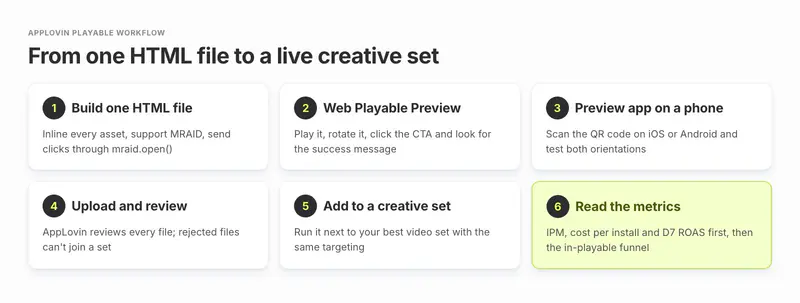
An AppLovin playable is one HTML file of 5 MB or less, with every asset inlined, MRAID 2.0 support and the store click sent through mraid.open(). Test it in AppLovin's Playable Preview tool, then on a phone in the Playable Preview app. Upload it to a creative set and judge it on IPM and D7 ROAS, not CTR.
AppLovin's own metrics show how one playable performs, not which mechanic or end card wins across all of them. Segwise is an AI creative analytics and creative generation platform that plays and tags every playable you run on AppLovin (Axon), then ranks each mechanic, tutorial style and end card by IPM and ROAS. Everything in the steps below works without Segwise. The last section shows where a tool saves time.
TL;DR
- If you are building one: single HTML file, 5 MB maximum, assets in base64 or base122, MRAID 2.0, works in portrait and landscape, no store redirect on the first tap, sound and timers start only after the first touch.
- If you are testing one: pass the web Playable Preview tool first (you should see "You have successfully clicked"), then scan its QR code with the Playable Preview app on a real iOS or Android phone.
- If you are launching: upload to the Media Library or straight into a creative set (up to 10 HTML files per set). Rejected files can't go into a set at all.
- If you are reading results: compare playables with videos on IPM, cost per install and D7 ROAS from the Reporting API, then use the HTML Metrics API to see where players drop inside the playable.
- If you have no HTML5 developer: turn an existing video into an AppLovin HTML file with a free converter, or use a managed playable service.
What are AppLovin's playable ad requirements in 2026?
AppLovin publishes one spec list for HTML playables, on its creative specs and guidelines page. The same list appears on the Playable Preview page. Here it is with what each rule means when you build.
| Requirement | AppLovin's rule | What it means in practice |
|---|---|---|
| File size | 5 MB or smaller | Compress images and audio first. Video inside a playable eats the budget fastest. |
| File type | A single HTML file | No zip, no folder of assets, no separate JS or CSS files. |
| Resources | Embedded in base64 or base122, external resources prohibited | Inline every image, font, sound and script into the one file. |
| Network calls | External network calls are prohibited | No analytics pixels, no CDN fonts, no remote config. |
| Orientation | Must work in landscape and portrait | Lay out both, and handle a rotation mid-play. |
| Timer | Starts only after the first user interaction | No countdown running while the player is still reading. |
| First tap | Must be playable and must not redirect to app stores on the first tap | The first touch plays the game. The store comes later. |
| Audio | Muted until the first interaction, stopped when the ad closes or is hidden | Start sound on the first touch, and stop it on close. |
| Auto-click | No auto-click or auto-redirect without user interaction | No timed jump to the store, even at the end. |
| Load time | Fully load and become interactive "in a reasonable time frame" | AppLovin gives no number, so test on a mid-range Android phone. |
| MRAID | Support MRAID v2.0, wait for the ready event, use mraid.open() for click-through | Other click methods fail, and AppLovin warns that broken files can hurt campaign performance. |
| WebGL | Provide a UI fallback if WebGL fails or the context is lost | Show a static screen with a working CTA instead of a black box. |
What AppLovin's playable spec doesn't set
Two things the spec page does not set: a maximum playable duration (the 60-second cap on the page is for video), and an end card inside the playable. AppLovin does accept a separate 9:16 image end card asset, and its analytics docs separate an end card inside your HTML from "the post-playable endcard template outside the playable". Plan your own in-playable end card and treat AppLovin's template as extra.
For how AppLovin's rules compare with Unity Ads, Mintegral, Google, Meta and the rest, see our playable ad specs by network.
How to build an AppLovin playable that passes review
These steps work with any engine or framework that exports a single HTML file. If you are new to the format, start with our playable ads guide, which covers mechanics, tutorials and end cards in general.
Step 1: Pick one mechanic and keep it short
AppLovin's own advice is that playables "should showcase the key features of your app." One core action, a quick tutorial and a fast win beats a long level.
Step 2: Export or bundle into one HTML file
Inline every asset as base64 or base122. Check the file size before anything else; over 5 MB fails at once.
Step 3: Wait for MRAID before you touch it
Listen for the ready event, or check that mraid.getState() is not loading, before you call MRAID or size your layout. MRAID only exists inside an ad container, so test the file in Playable Preview rather than a plain browser tab.
Step 4: Route every store click through mraid.open()
This includes the CTA on your end card and any "Download" button visible from the start.
Step 5: Cover the rest of the spec table
Gate sound, timers and the store behind the first touch, lay out portrait and landscape (most teams build portrait only, so rotate mid-level once yourself), and add a still fallback screen with a working CTA if you use WebGL.
Step 6: Add AppLovin's playable analytics events
Add them if the playable has a challenge (more on these in the metrics section). AppLovin says not to add them to short HTMLs with fewer than three interactions, or ones that redirect within five seconds of the first touch.
A minimal MRAID skeleton for an AppLovin playable
A minimal skeleton for steps 3, 4 and 6 looks like this. The safety check around ALPlayableAnalytics is AppLovin's own pattern, so the same file still runs on other networks and in local tests. The last line also checks that mraid exists, so a plain browser tab starts the level instead of throwing an error.
function start() {
  if (typeof window.ALPlayableAnalytics != 'undefined') {
    window.ALPlayableAnalytics.trackEvent('DISPLAYED');
  }
  // build the level here
}
function goToStore() {
  if (typeof window.ALPlayableAnalytics != 'undefined') {
    window.ALPlayableAnalytics.trackEvent('CTA_CLICKED');
  }
  if (typeof mraid != 'undefined') { mraid.open(STORE_URL); }
}
if (typeof mraid != 'undefined' && mraid.getState() === 'loading') {
  mraid.addEventListener('ready', start);
} else {
  start();
}
No developer? Convert a video into an AppLovin playable
Segwise's free AppLovin playable ads converter turns an MP4 video ad into an AppLovin HTML file you can run through Playable Preview. That gets a proven video into AppLovin's HTML inventory fast. A wrapped video is not a real game, though, so expect it to behave more like a video than an interactive demo. There is a matching Mintegral playable ads converter if you buy there too. For fully built playables without engineers, our roundup of playable ad generation tools compares builders, studios and managed services.
How to preview and test an AppLovin playable
AppLovin gives you two free tools, and you need both. The web tool catches format problems. The phone app catches the problems that only show up on a real device.
Step 1: Run the web Playable Preview tool
Open AppLovin Playable Preview. Drag your HTML file onto the page, or paste a hosted URL that ends in .html. The playable runs in a simulated phone screen.
- Play it through to the end, as a player would.
- Click Rotate and play again in landscape.
- Click your CTA. The tool should show "You have successfully clicked." AppLovin says that if this message does not appear, the playable will not work in the AppLovin SDK either.
- Click Reload and check that the first touch still starts the game.
Step 2: Test on a real phone with the Playable Preview app
After you upload or preview on the web page, a QR code appears at the bottom. Install the Playable Preview app (published by AppLovin for iOS and Android), scan the code, and the playable opens on the phone. Test both orientations and tap the CTA. A redirect means the click works; AppLovin says you can ignore where the redirect lands. AppLovin is explicit that a playable can pass the web page and still fail on real devices, which is why this step exists.
Step 3: Run the checks the preview tools don't make obvious
Each one can fail a file that looks fine in preview:
- Open the file in a desktop browser with the developer tools Network tab open. After it loads, there should be zero outside requests.
- On the phone, leave the ad untouched for a minute: no sound, no moving timer and no redirect. Then tap once: you should be in the game, not the store. Close the ad and check the sound stops.
- Test on a mid-range Android phone as well as a recent iPhone, because "a reasonable time frame" to load is judged on real devices.
How to upload a playable to AppLovin and add it to a creative set
AppLovin groups ads into creative sets: a batch of videos, HTML playables and images that run together in a campaign. You can build a set inside a campaign, or build it first and attach it to several campaigns. AppLovin's creative set guide gives these steps:
- Go to Campaigns and open the campaign.
- Click Create to start a new creative set, and give it a name.
- Click Add Assets and pick your HTML playable (plus any videos and images) from the Media Library. If the file isn't uploaded yet, click Upload here.
- You can pick at most 10 files of each asset type, so up to 10 playables per set.
- Click Confirm, check the ads in the Preview section, then click Save as live.
Optional settings on the set: Language or Country/Region targeting for localized playables, and Custom product page targeting to send players to an iOS custom product page (the ppid value) or an Android custom store listing (the listing value) that matches the playable's theme.
Testing one playable across several apps or countries?
Use AppLovin's creative-first flow. You build the set from the Media page, then attach it to many campaigns from the Creative Sets tab, and its performance history stays in one place. AppLovin names this exact case: testing "the same playables across several apps or geos". One trap: if a set is shared across campaigns and you pause it through the Management API, it pauses in every campaign. To stop it in one campaign only, remove it from that campaign instead.
How AppLovin reviews an uploaded playable
Every upload is reviewed automatically. If a file breaks a policy, the Media Library marks it "Rejected", and a rejected file can't be added to a creative set. A campaign also serves nothing unless at least one of its creative sets is enabled, so a rejected playable in a new campaign can stop delivery entirely.
Why AppLovin rejects playables, and how to fix each cause
AppLovin's public docs don't publish a list of rejection codes. They do say that assets that break its rules can be blocked, and that serious or repeated violations can lead to an account ban. The table maps each written rule to the problem that usually breaks it.
| Likely rejection cause | The rule it breaks | Fix |
|---|---|---|
| File over 5 MB | File size | Compress textures and audio; cut embedded video first. |
| Zip, multiple files or linked assets | Single HTML file, embedded resources | Rebuild as one file with base64 or base122 assets. |
| Remote fonts, analytics tags or CDN scripts | No external network calls | Inline the font; remove third-party tags. |
| First tap opens the store | Must not redirect on the first tap | Make the first touch start play; show the CTA after. |
| Timed jump to the store | No auto-click or auto-redirect | Only redirect on a user tap. |
| Sound on load | Audio muted until the first interaction | Start audio on the first touch. |
| Timer runs before the player touches | Timer starts after the first interaction | Start the countdown in the first touch handler. |
| Broken in landscape | Both orientations | Add a landscape layout and test Rotate. |
| CTA does nothing in the SDK | MRAID 2.0, mraid.open() | Replace window.open or link clicks with mraid.open(). |
| Black screen on some phones | WebGL fallback | Add a static fallback screen with a CTA. |
| Fake buttons, fake close icons or gameplay not in the game | AppLovin's demand partner policies prohibit "deceptive or misleading ad designs or elements" | Show real gameplay and plain controls. |
| Another brand's characters or music | Third-party intellectual property | Use only assets you own or license. |
| AI-made content with no label where the law needs one | The policies require "any disclosures or labels required under applicable laws" | Add the required disclosure. |
What to do when no rejection cause fits
The same policies say AppLovin can review content "on a case-by-case basis" and require compliance with the Better Ads Standards. If a file is rejected and none of the table applies, ask your AppLovin account team for the reason.
How to test playables against videos on AppLovin
AppLovin does not document a split-test tool for creatives. It decides how many impressions each asset gets, so a playable and a video in the same campaign will rarely get equal traffic. Compare rates, not totals. AppLovin's own scale guide also reminds you that "the majority of AppLovin's inventory is video-based", so the question is usually whether playables add to strong videos, not whether they replace them.
Compare playables and videos fairly: Segwise lets you put AppLovin playables and videos side by side on IPM, cost per install and D7 ROAS, with every playable tagged by mechanic, tutorial and end card. Start a free trial.
A clean way to run a playable vs video test
A clean way to run the test:
- Keep your best video creative set live as the control. Don't change it during the test.
- Add the playable as a new creative set in the same campaign, with the same targeting. A separate set keeps the playable's numbers apart, because the Reporting API breaks results out by
creative_set. - Fund the campaign properly. AppLovin recommends a daily budget that gets at least 15 to 20 conversions a day across the campaign for stable performance.
- Pull results by format. The Reporting API's
ad_creative_typecolumn separatesPLAYABLE,VIDEO,GRAPHICand combined types such asVIDEO_PLAYABLE. Group by it, or bycreative_set. - Decide on IPM, cost per install and D7 ROAS together. Read the next section for where each one comes from.
When to keep or drop the playable: a decision rule
This decision rule is our rule of thumb, not AppLovin guidance: wait for at least 100 installs on each side and 7 full days, so D7 ROAS exists. Keep the playable if its IPM beats the video's by 10% or more and its D7 ROAS is at least as good. A playable that wins on IPM but loses on D7 ROAS is buying cheaper installs from weaker players, so don't scale it on IPM alone.
Worked example: playable vs video IPM and D7 ROAS
These are made-up numbers to show the math. IPM is installs divided by impressions, times 1,000. The Reporting API gives installs per impression as conversion_rate, so IPM is that figure times 1,000.
| Impressions | Installs | IPM | D7 ROAS | Verdict | |
|---|---|---|---|---|---|
| Video set (control) | 250,000 | 2,500 | 10.0 | 9% | Baseline |
| Playable set | 80,000 | 1,040 | 13.0 | 9.5% | IPM up 30%, ROAS holds: keep and scale |
| Playable set B | 60,000 | 840 | 14.0 | 6% | IPM up 40%, ROAS down: don't scale yet |
Playable B is the trap. A high CTR or IPM can come from players who enjoyed the mini-game and never come back. We go deeper on why CTR misleads in how to test playables.
Which metrics to read for AppLovin playables
AppLovin gives you two layers of data. Outcome metrics tell you whether a playable makes money. In-playable metrics tell you why.
Outcome metrics from the dashboard and Reporting API
Outcome metrics come from the dashboard and the Reporting API: impressions, conversions (installs), conversion_rate, cost, average_cpa, roas_7d (and other windows from day 0 to 1 year) and ret_1d to ret_28d for retention. The Asset Reporting API adds per-asset impressions, clicks, CTR and cost, but it has no install column, so read installs by creative set or ad name in the main Reporting API.
In-playable metrics: interactions, challenges and end cards
In-playable metrics come from the HTML Metrics API (the /playableMetrics endpoint, with a 45-day window). Some columns fill on their own, such as interactions, redirects, average duration and error rates. The challenge and CTA columns fill only if you add AppLovin's ALPlayableAnalytics events to the playable. AppLovin tracks only its own predefined events, not custom ones.
| Question | Metric | Where in AppLovin |
|---|---|---|
| Does it make money? | D7 ROAS, cost per install | Reporting API: roas_7d, average_cpa |
| Does it win installs? | IPM | Reporting API: conversion_rate x 1,000 |
| Do installs stay? | D1 and D7 retention | Reporting API: ret_1d, ret_7d |
| Do people touch it at all? | Unique interaction rate | HTML Metrics: unique_interactions_rate |
| Do they start and finish the challenge? | Started, pass 25/50/75, solved rates | HTML Metrics: challenge_pass_25_rate and friends (needs events) |
| Is it too hard? | Failed and retry rates | HTML Metrics: challenge_failed_rate, challenge_retry_rate |
| Does the end card convert? | End card shown, CTA click rate, redirects | HTML Metrics: endcard_shown, cta_click_rate, unique_redirects_rate |
| Is the build broken somewhere? | Black view, rendering and runtime errors | HTML Metrics: black_view_error_rate, rendering_error_rate, runtime_error_rate |
Four AppLovin metric details that save confusion
Four details from AppLovin's docs that save confusion:
- The
endcard_showncolumn counts "endcard shows after the HTML phase". AppLovin doesn't say whether that includes its own post-playable template, so judge your in-playable end card oncta_click_rateandunique_redirects_rateas well. - The
COMPLETEDevent is deprecated. UseCHALLENGE_SOLVEDandENDCARD_SHOWNinstead. - Don't fire
CHALLENGE_FAILEDfor crashes or load failures. Those belong in the error columns, not your difficulty data. - The HTML Metrics API is cohorted by default and groups countries into US, G1 (GB, CA, AU, DE, FR, JP, KR), G2 and ROW. Set
day_column=event_dayfor real-time numbers.
How to turn the playable funnel into a fix

- Low interaction rate: the first frame or hook doesn't invite a touch. Change the opening scene or the hand prompt.
- Players start but don't pass 50%: the tutorial or difficulty is wrong. Make the first level easier.
- Many solve the challenge but few click: the end card or CTA is weak. Test a new end card.
- High error rates on some devices: it's a build problem, not a creative one. Fix it before you judge the creative.
How often should you refresh AppLovin playables?
AppLovin does not publish a fixed refresh cadence. Its scale guide says to "upload and test new creative assets frequently" and to "regularly introduce new creative assets", video, HTML playables and images alike. That leaves the timing to you.
Our rule of thumb: add a new playable variant every 2 to 4 weeks for each campaign that spends steadily. Replace a playable when its IPM sits 20% or more below its own first-two-week average for 7 days in a row, as long as error rates haven't changed. If errors moved too, fix the build first.
Refreshing a playable rarely means a rebuild. Change one element at a time, such as the end card, the tutorial prompt or the hook scene, so you learn which part did the work. That's also what makes a steady pipeline possible; our guide to producing playable ads at scale covers the production side. If you sell in non-English markets, AppLovin also recommends translated ads or localized subtitles, and creative sets can target by language.
How Segwise tags and ranks AppLovin playables
AppLovin's HTML Metrics tell you how one playable behaves. They don't tell you which tutorial style or end card wins across all your playables, or how a playable on AppLovin compares with the same idea on Unity Ads, Mintegral or Meta. That's where Segwise helps.
Connect Axon with an API key
Setup is no-code, but AppLovin needs an API key. In your AppLovin dashboard, open the Keys menu and copy your Reporting API key and Account ID. In Segwise, go to Settings, then Ad Networks, click Connect under Axon and paste both. The AppLovin integration guide shows each screen. An MMP is optional; Segwise works with five (AppsFlyer, Adjust, Branch, Singular and Kochava) if you want post-install data from yours.
Segwise plays and tags every playable
The Creative Tagging Agent plays each playable end to end, the way a player would, and tags the core mechanic, tutorial style, hook scene, first-level difficulty, end card and CTA. Segwise is the only platform that tags playable ad elements. The example below needed no manual edits, but your team can review and adjust any tag.

Each playable element is ranked by what it earned
Tags are matched to spend, IPM, CPI and ROAS, so you can see whether tap-to-steer beats swipe tutorials, or which end card style earns the cheapest installs, across every playable and network you run.

It also puts playables and videos side by side on the same metrics, so you can read the playable-versus-video comparison from the test above without exports.

New playables from your winning elements
The Creative Generation Agent lets you make statics and videos up to 30 seconds, including AI UGC-style ads, from your own winning patterns. Playables come through Playable Ad Generation, a managed service: net-new playables are built around your winning elements, and the Segwise team polishes, tests and delivers each one to the specs of the networks you run on, AppLovin included. You review each one and ask for changes to the mechanic, end card or hook before it runs. Once live, the new playable is tagged like the rest, so each round starts from better data.
You can use each agent on its own, or do it all in one place by chatting with the Segwise agent: ask how your ads are performing, see what competitors are running, and make new ads from your winners.
Segwise starts at $499/month for advertisers spending up to $250K/month, with a special 50% discount for startups spending under $50K/month, and includes a 7-day free trial.
Where Segwise is not the right fit for AppLovin playables
- If you want to edit playable code yourself in a self-serve builder, Segwise doesn't offer that. Playable generation is managed by its team.
- Segwise doesn't upload files to AppLovin. You still add finished playables to your creative sets.
- Competitor tracking covers the Meta, TikTok, LinkedIn and Google ad libraries, so it won't show you rival playables that run only on AppLovin.
- Ranking elements needs history. The trial imports up to 14 days, paid plans up to 3 months, so a studio with two or three playables gets less from element rankings than one with dozens.
- When you don't need a tool: if you run one or two playables on AppLovin only, the HTML Metrics API, a spreadsheet and the Reporting API cover it.
How to get your next AppLovin playable live
An AppLovin playable has to be one HTML file of 5 MB or less, with every asset inlined, MRAID 2.0 support and a first touch that plays the game rather than opening the store. Check it in the web Playable Preview tool and on a real phone before you upload it to a creative set. Then run it next to your best video set, and keep it only if it beats the video on IPM without losing on D7 ROAS. Your next step is to run your current file through Playable Preview and confirm you see the successful click message.